
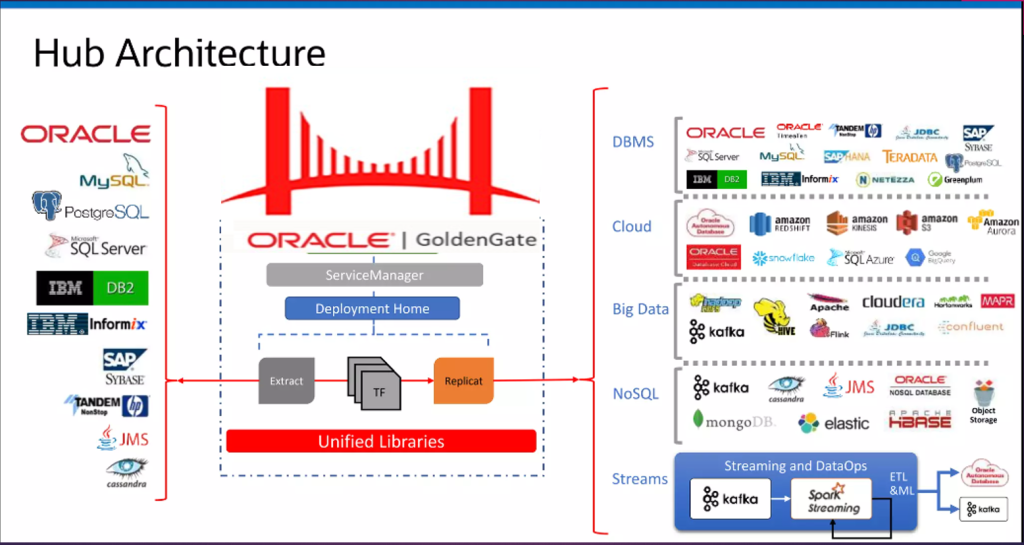
We need Single server only, Below are the High-Level Steps: —
Step-1 Install the most recent Oracle client on the GoldenGate hub server.
Step-2 Oracle GoldenGate for Microservices installation. (The location of software is /OGG/OGG_MA_HOME)
Step-3 Configure Service Manager using./oggca. (The location of Service Manager is /OGG/OGG_SM)
Step-4 Configure Source Database and Target database for data raplication
Step-5 Create Extract Distribution Path and Replicat process using OGG GUI

Step-1 Install the most recent Oracle client on the GoldenGate hub server
Download the Oracle instant client software from https://www.oracle.com/in/database/technologies/instant-client/linux-x86-64-downloads.html

Step-2 Oracle GoldenGate for Microservices installation on Linux OS
Before installing OGG 21c MA, you need to create three directories which are below.
Why you need the above three directories? What is the need of it?
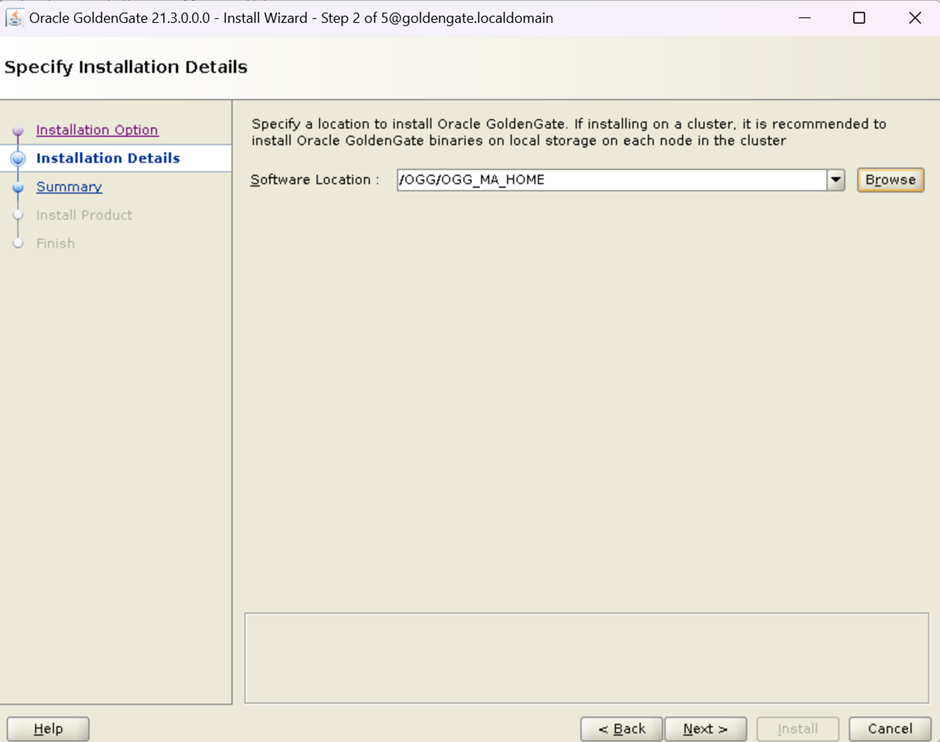
/OGG/OGG_MA_HOME is OGG_HOME
/OGG/OGG_SM is Service Manager Home
/OGG/OGG_DEPLOY is Deployment Home
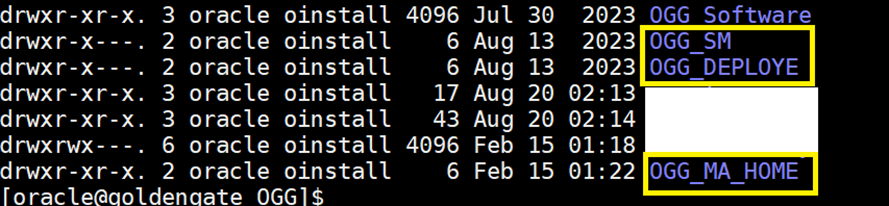
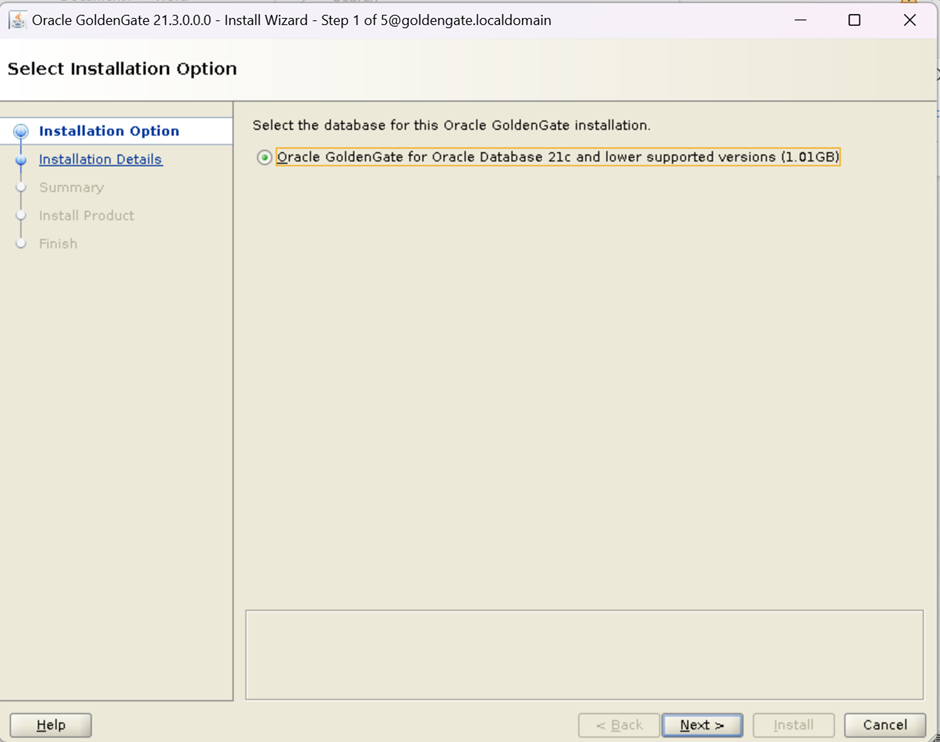
Note:- Unzip the OGG software and execute the installater
Now, navigate to the directory where binary is stored and run the runInstaller file to start the installation of OGG.
cd /OGG/OGG_Software/fbo_ggs_Linux_x64_Oracle_services_shiphome/Disk1/
Execute the runInstaller as below snap
[oracle@goldengate ~]$ cd /OGG/OGG_Software/fbo_ggs_Linux_x64_Oracle_services_shiphome/Disk1/
[oracle@goldengate Disk1]$
[oracle@goldengate Disk1]$
[oracle@goldengate Disk1]$ ./runInstaller
Starting Oracle Universal Installer...
Checking Temp space: must be greater than 120 MB. Actual 4990 MB Passed
Checking swap space: must be greater than 150 MB. Actual 8187 MB Passed
Checking monitor: must be configured to display at least 256 colors. Actual 16777216 Passed
Preparing to launch Oracle Universal Installer from /tmp/OraInstall2024-02-14_11-55-47PM. Please wait ...[oracle@goldengate Disk1]$
On this screen, Provide the OGG_HOME for Software Location
On this screen, provide the Inventory Directory: - You are installing your first installation on this host, Specify a directory for installation metadata files (for example Installation log files) This directory is called "Inventory Directory"
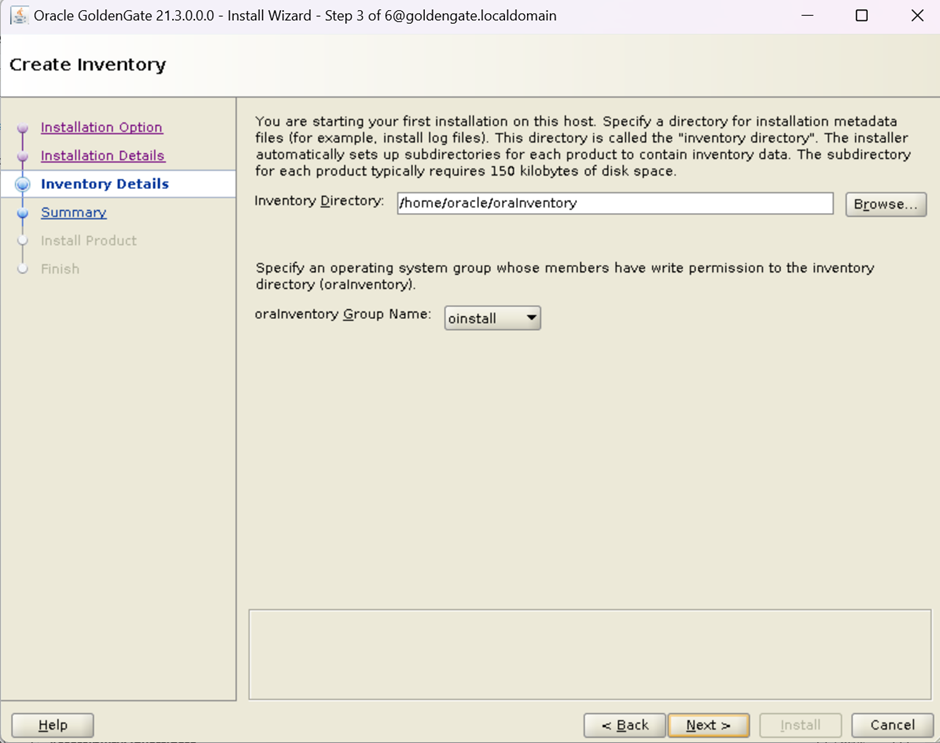
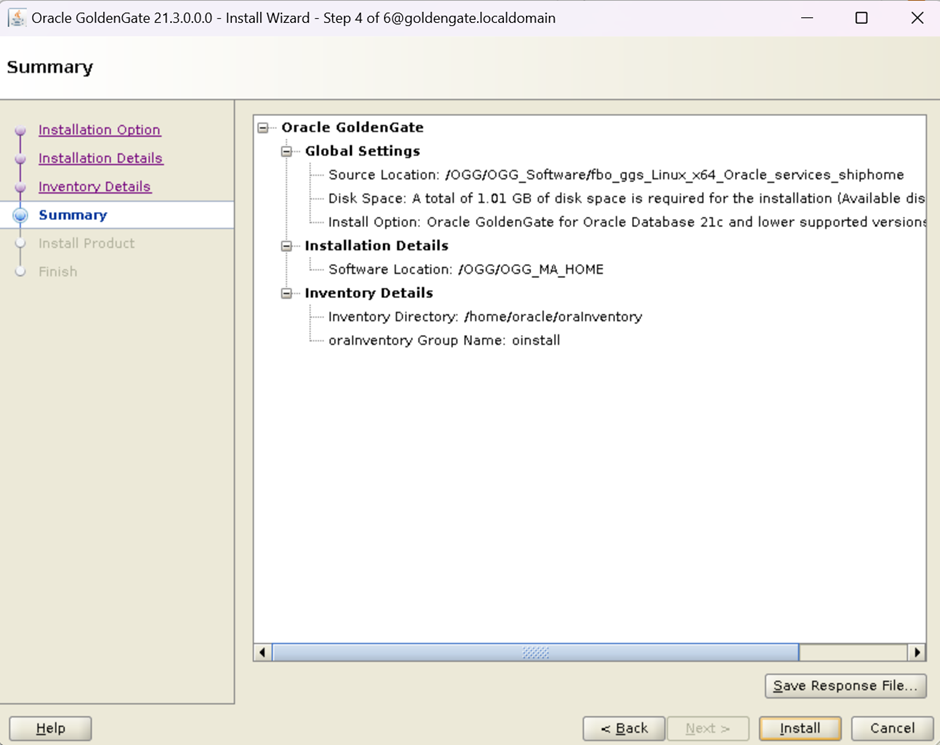
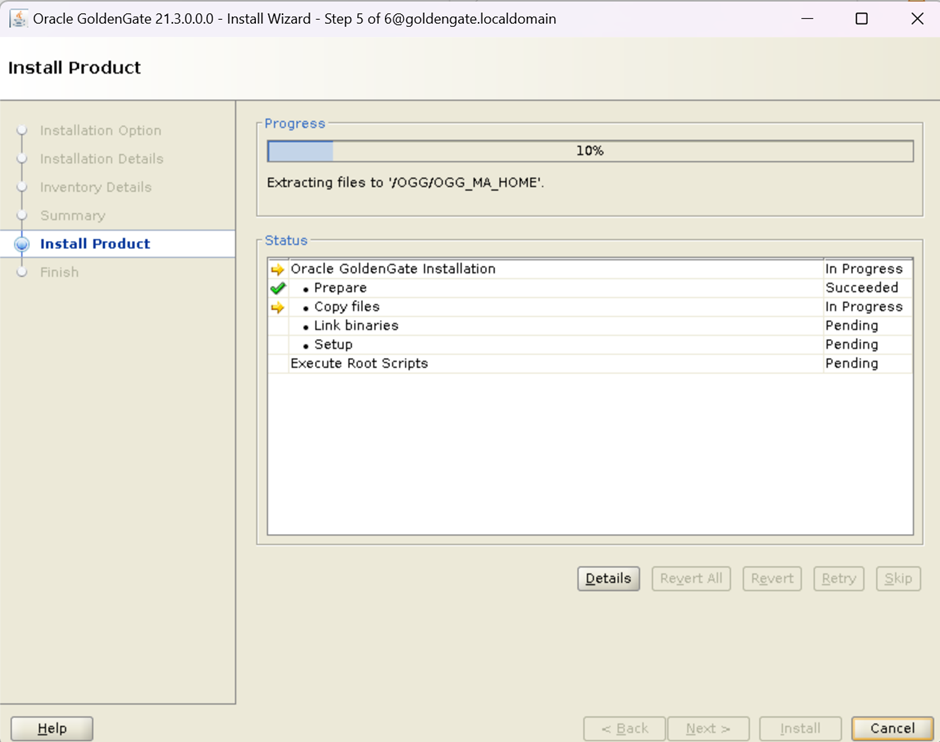
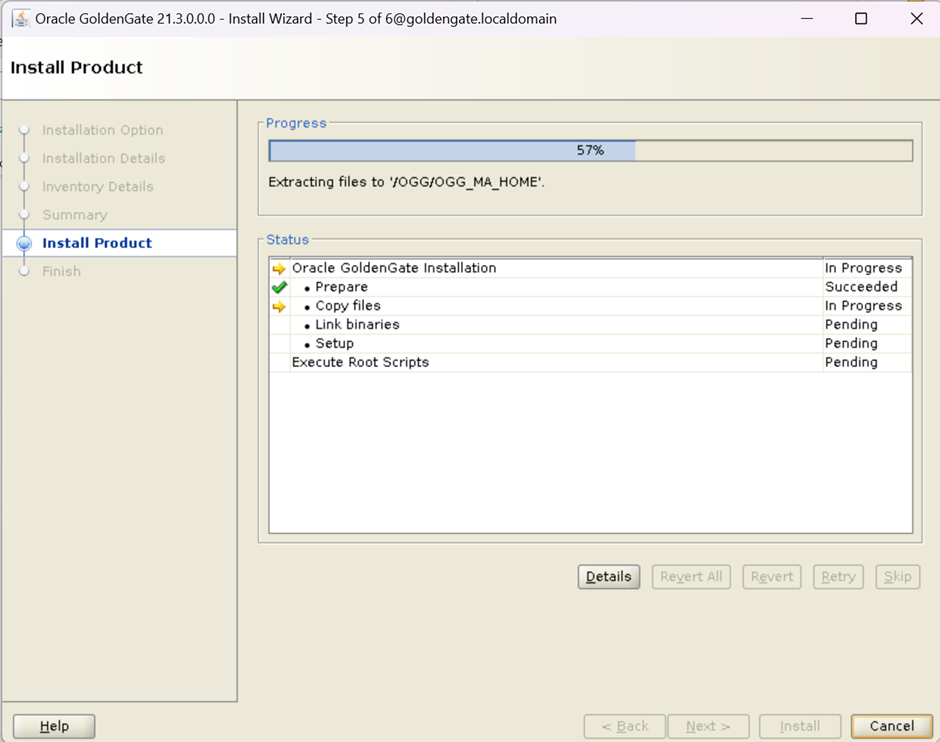
On this screen, Installer ask you to execute scripts using root user
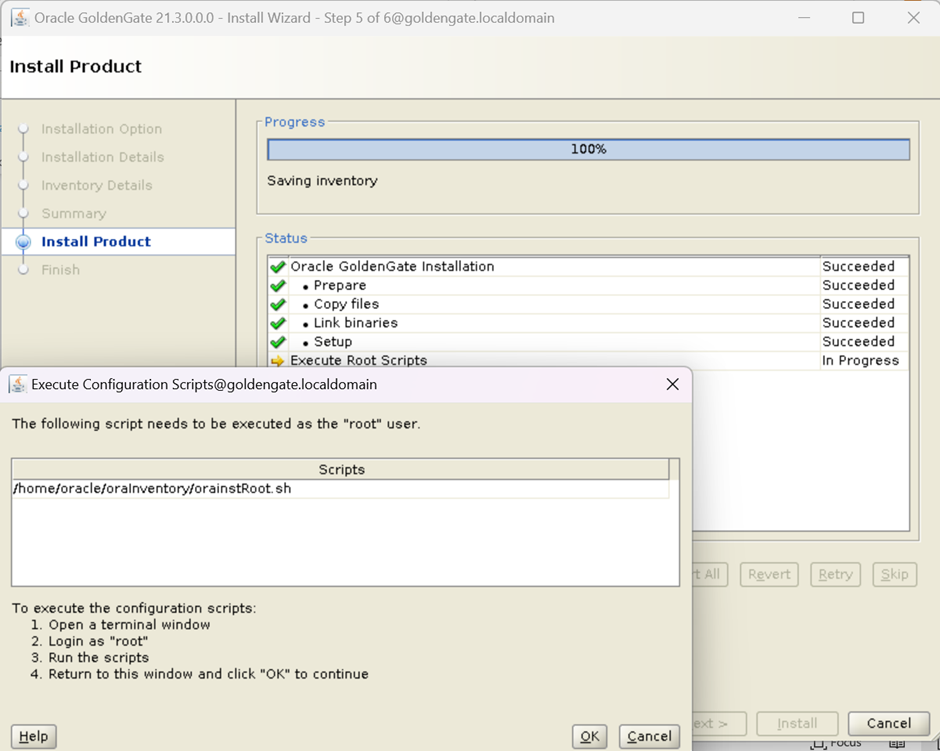
From the root user on OS, Please execute orainstRoot.sh /home/oracle/oraInventory/orainstRoot.sh
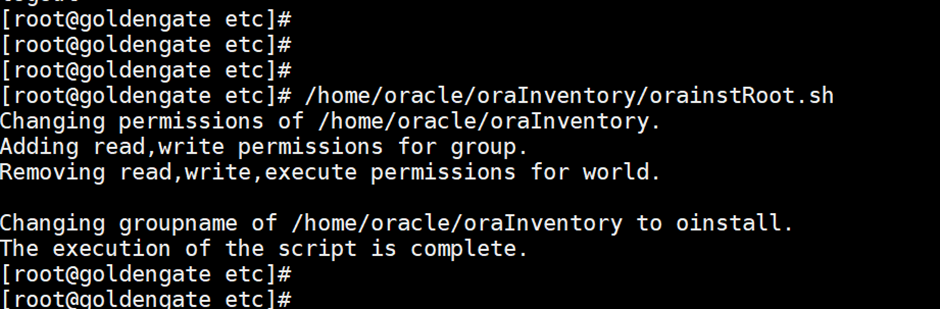
What is the purpose of orainstRoot.sh script in GoldenGate
This script is for below purpose
Changing permissions of /home/oracle/oraInventory.Adding read,write permissions for group.Removing read,write,execute permissions for world.Changing groupname of /home/oracle/oraInventory to oinstall.
Once the execution of the script is complete, Below screen shows that Installation done.
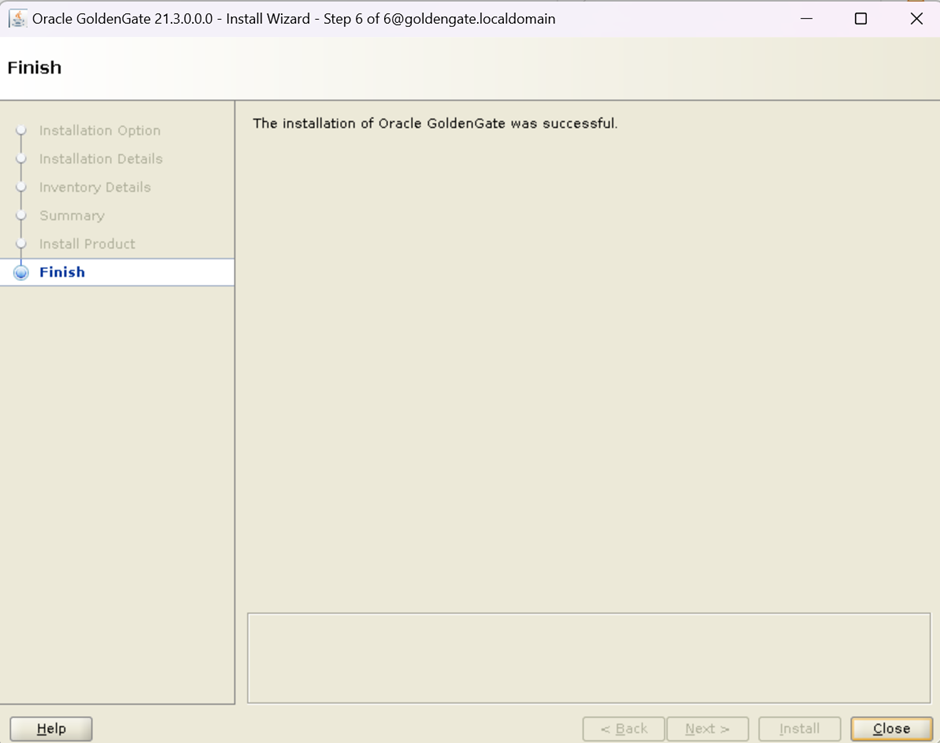
******************Oracle GoldenGate 21c for Microservices is installed now.******************
Step-3 Configure Service Manager using ./oggca (Oracle GoldenGate Configuration Assistance)
cd /OGG/OGG_MA_HOME/bin
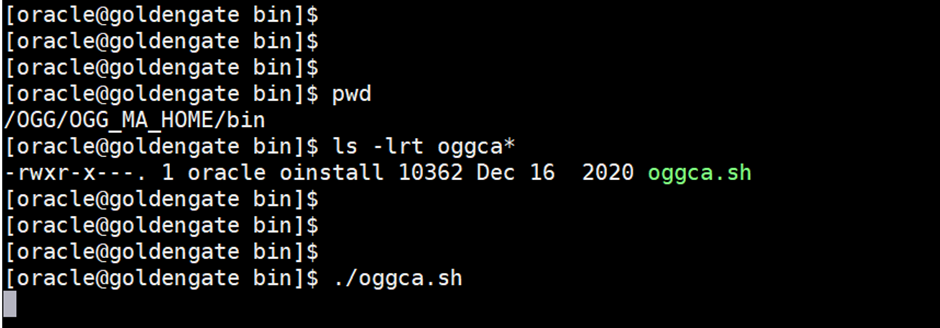
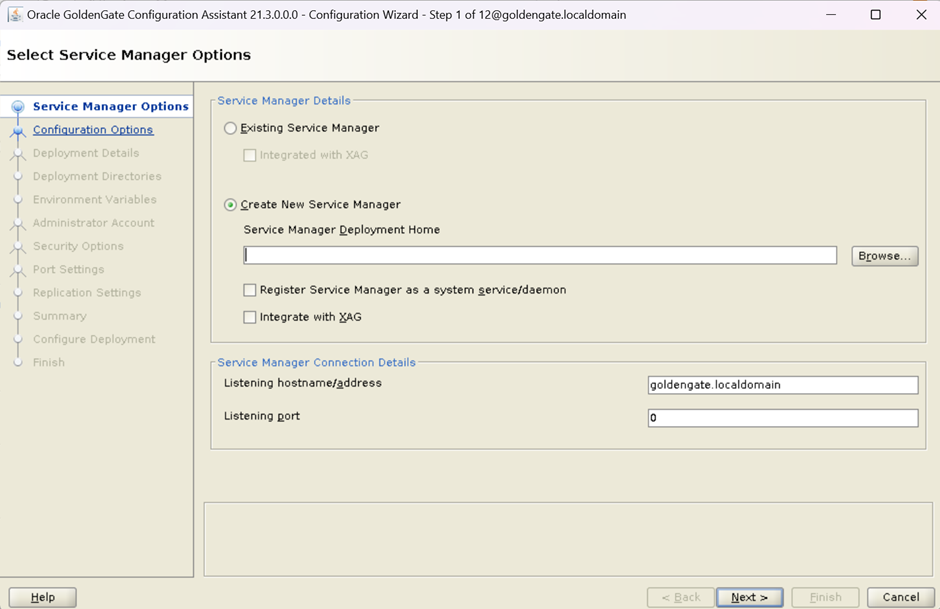
The location of Service Manager is /OGG/OGG_SM
Note:- Choose Register Service Manager with system service as daemon
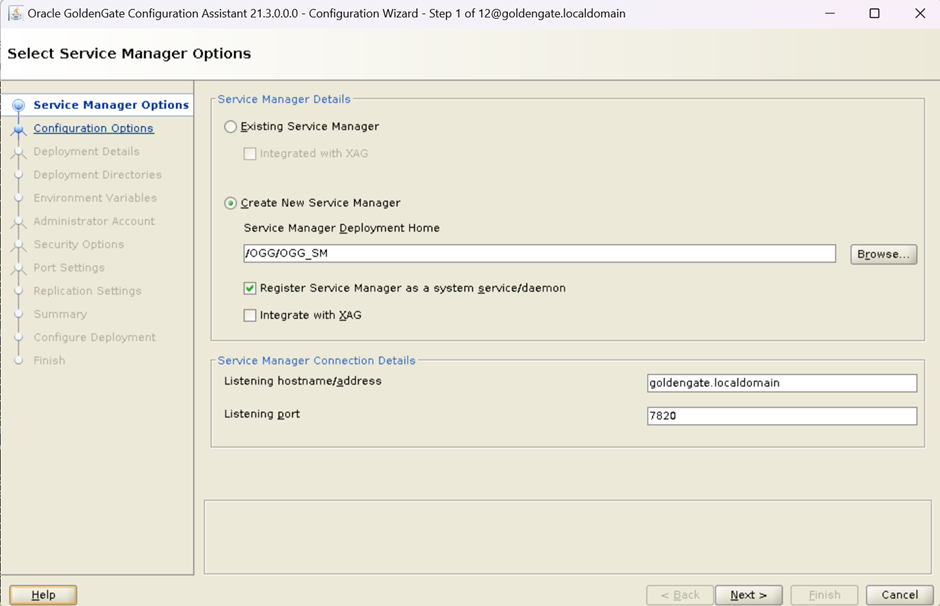
Click on Add new deployment as below snap and click on Next
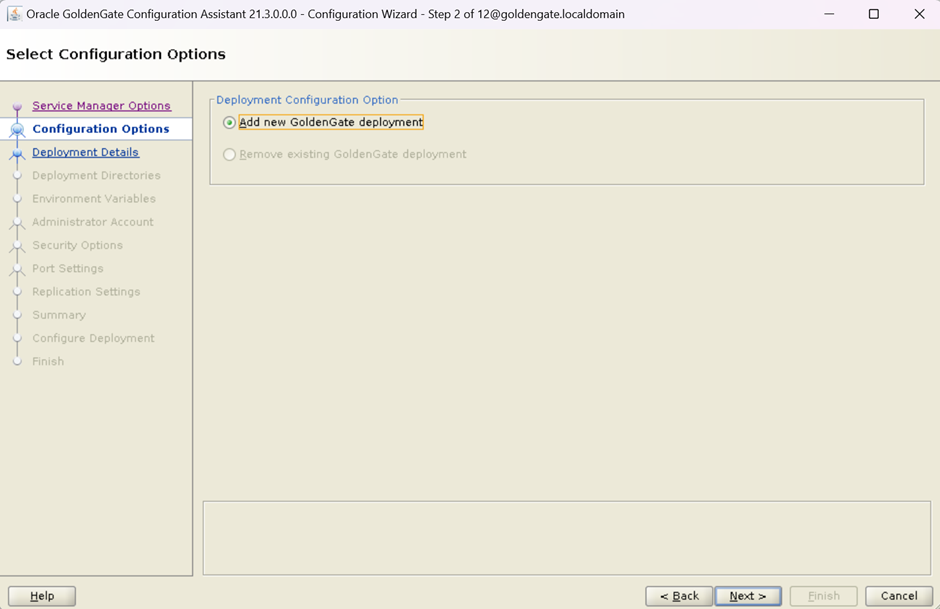
On this screen, Provide the name to deployment and software home will be OGG HOME.
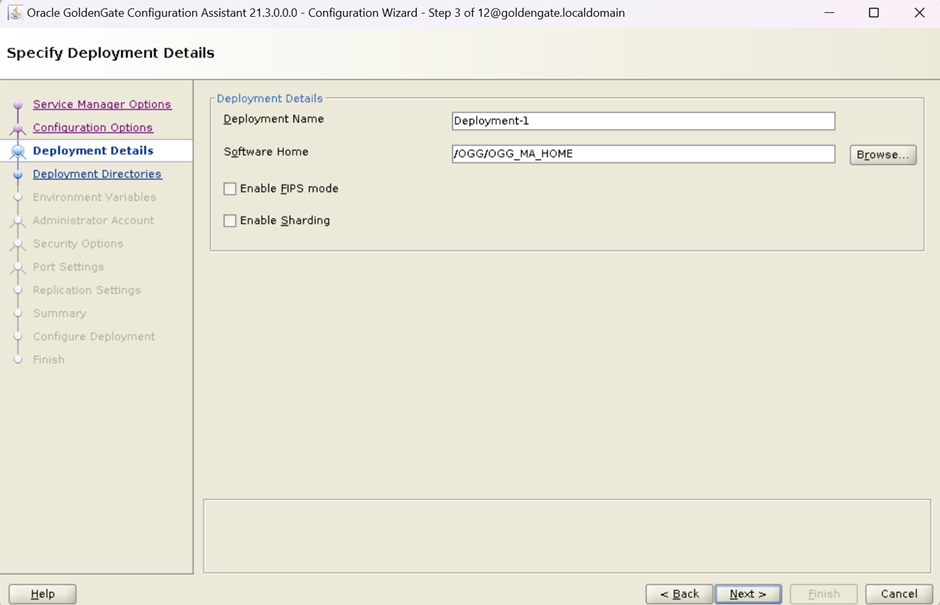
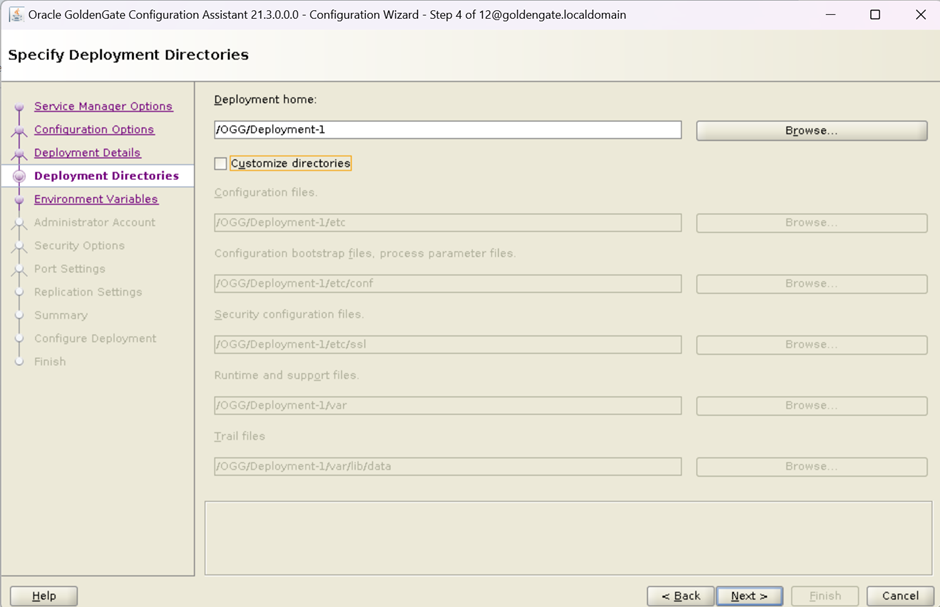
On this screen, You can provide your own location for configuration files, parameter files etc., If you want GG to take care of it, then just uncheck it.
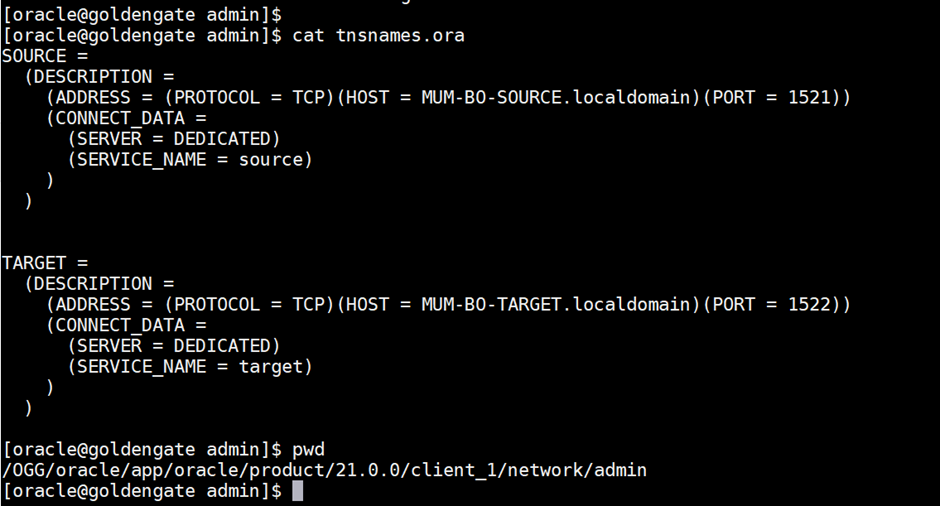
Check-in to the Oracle DB client installed on OGG server
cd /OGG/oracle/app/oracle/product/21.0.0/client_1/network/admin
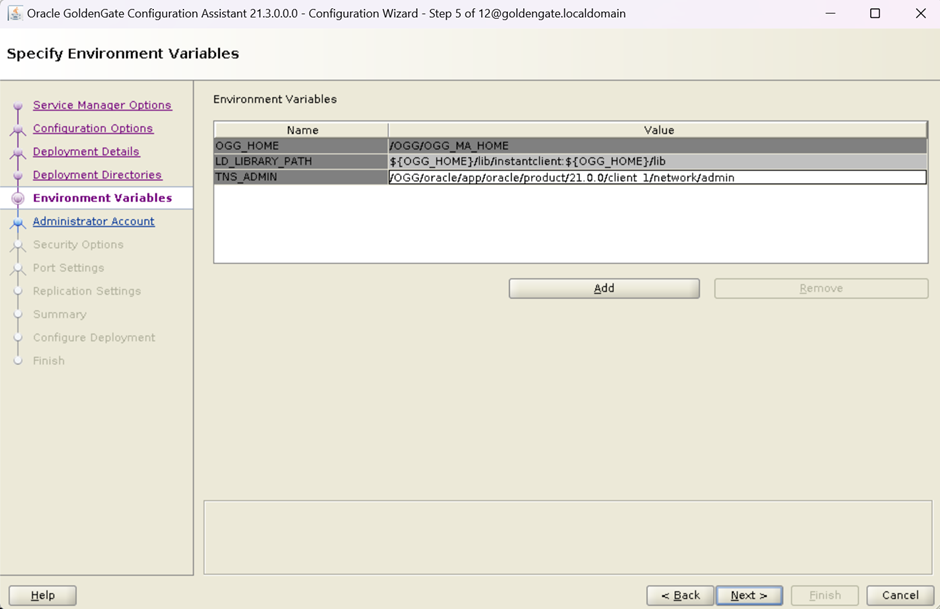
On this screen, Specify the TNS_ADMIN location
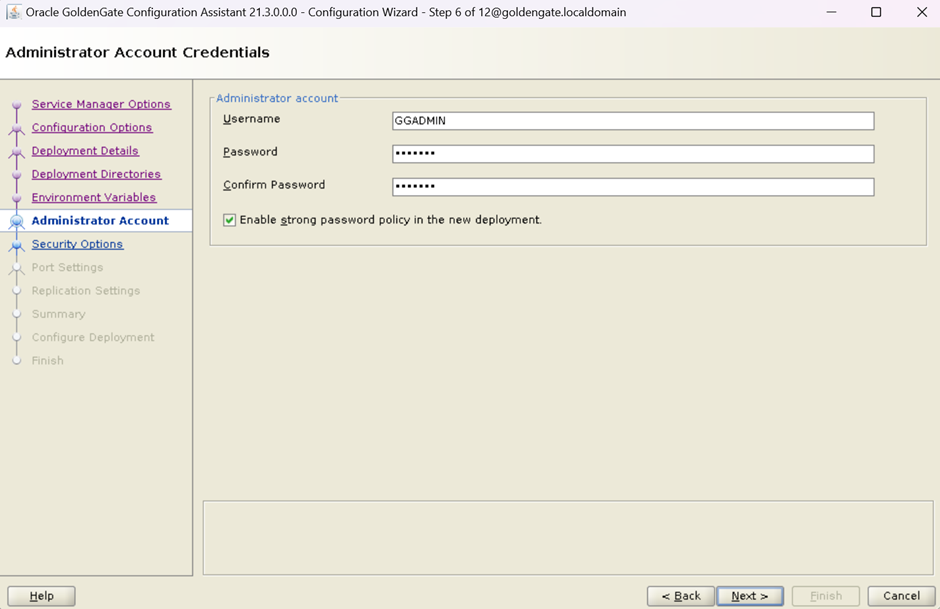
On this screen, Set/Create the username and password for Service Manager and Services.
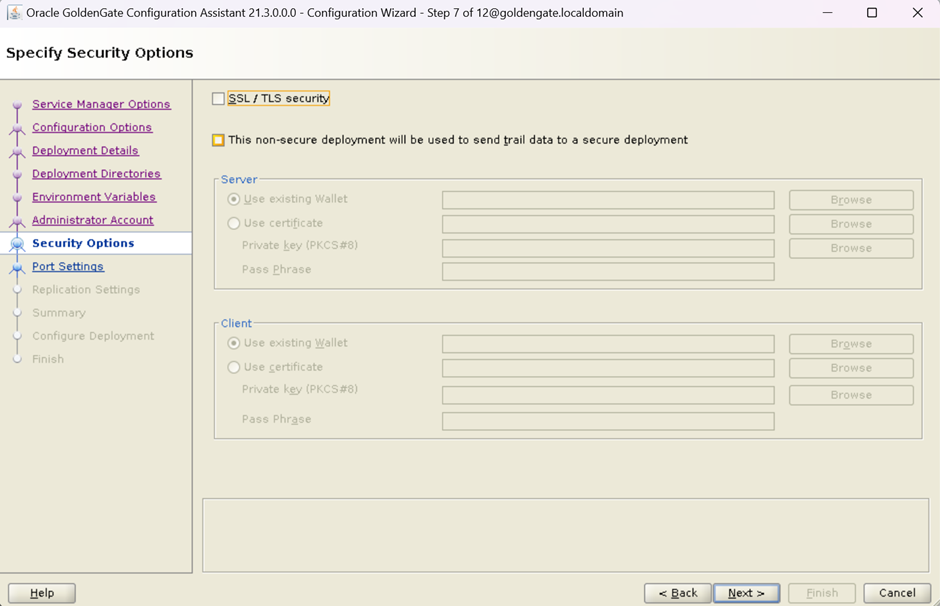
On this screen:-Uncheck the boxes to create unsecured deployment. But, if you are going to replicat data from this unsecured deployment to a secured deployment, then you need to check the second check box. All three cases are shown below, you can select it accordingly.
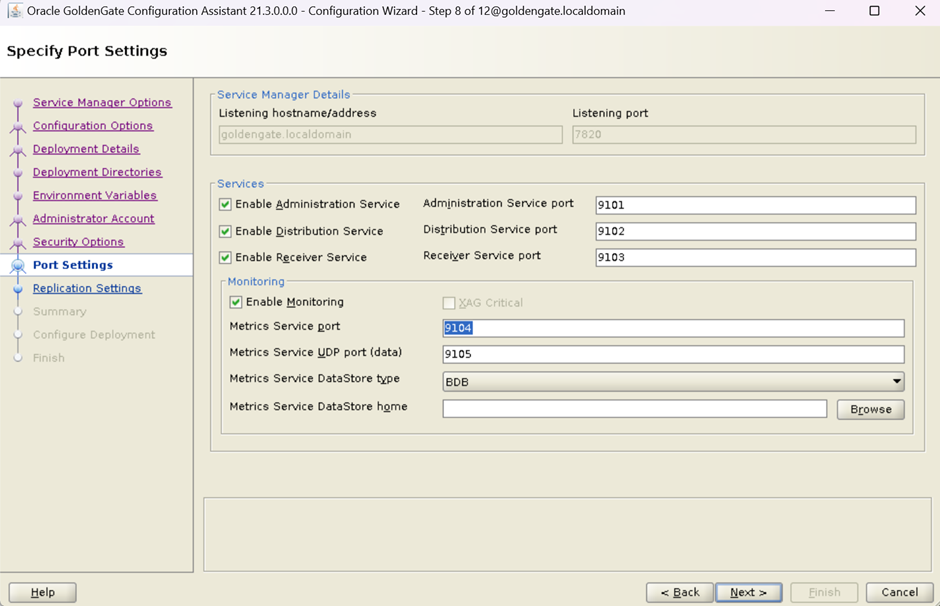
On this next screen, Provide the port number
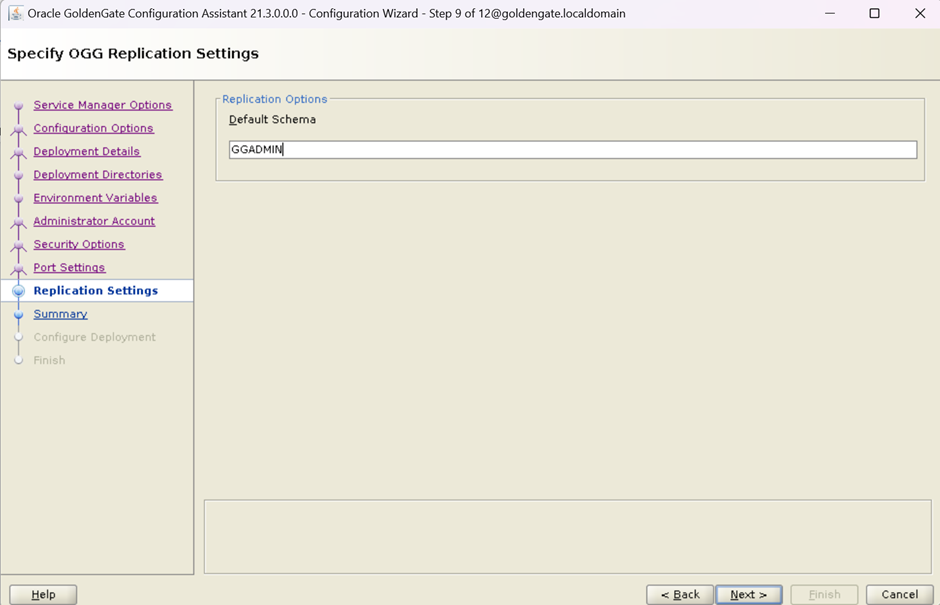
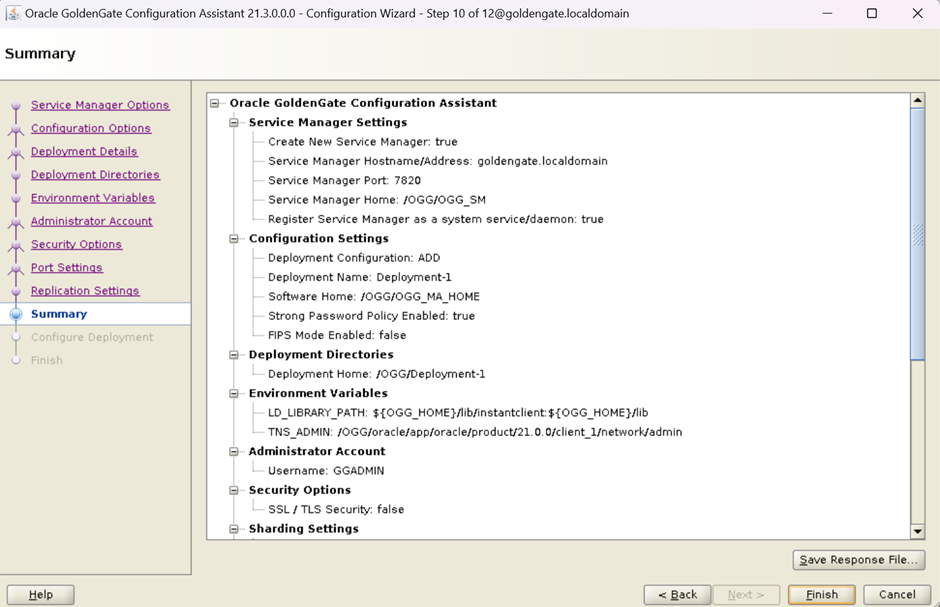
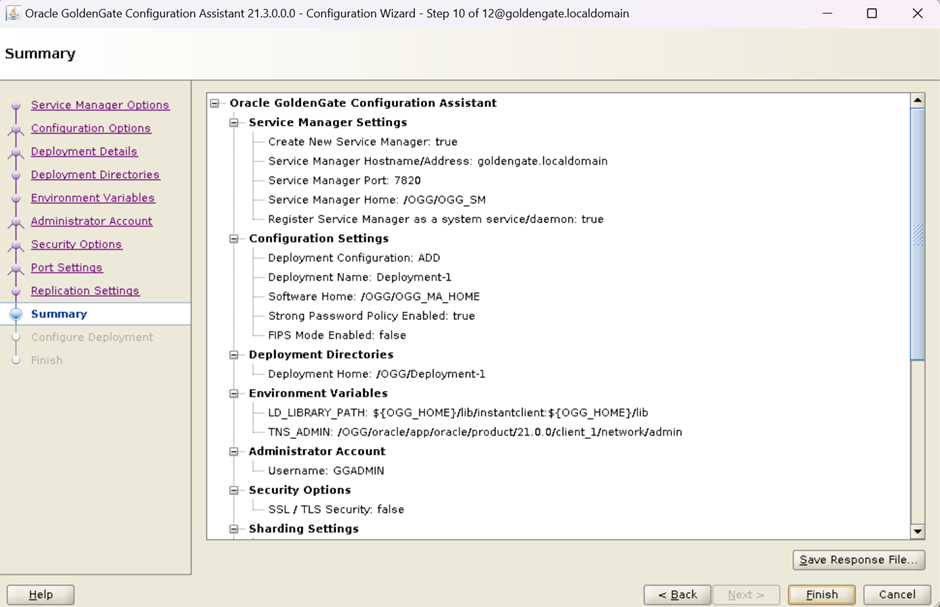
Execute below asked script by installer using root user
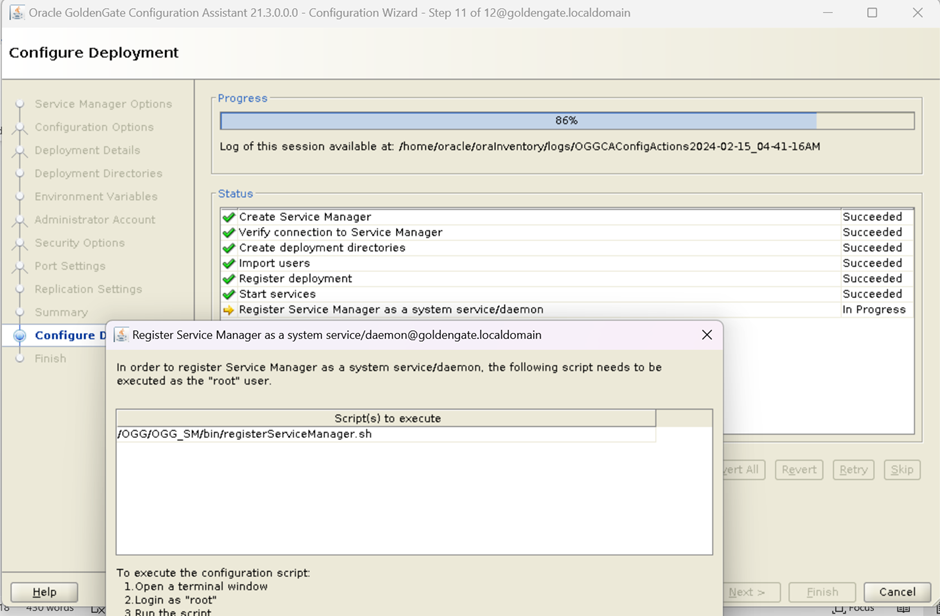
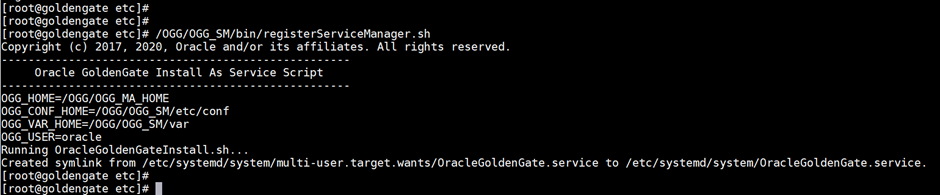
From root user, execute registerServiceManager.sh
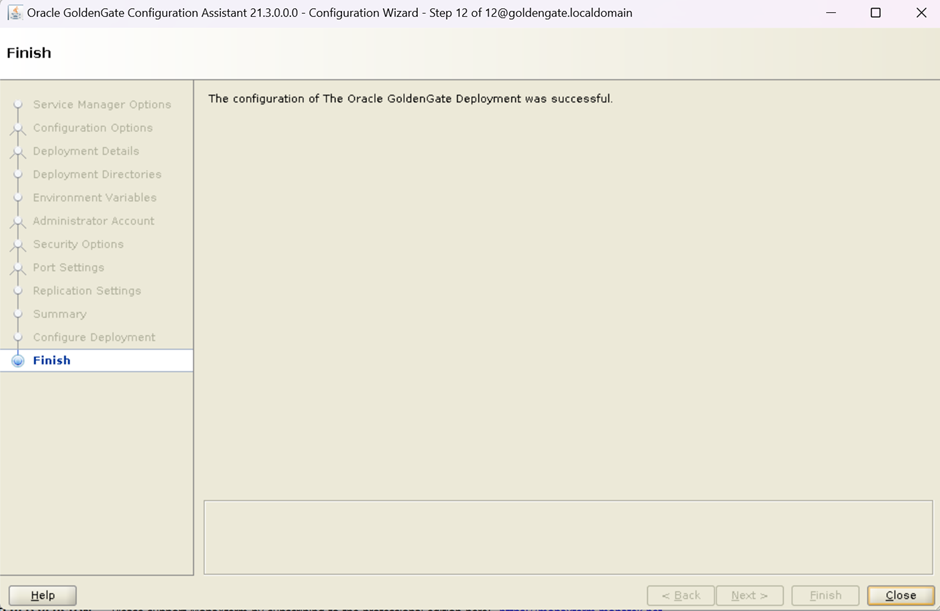
Once OGG deployment done, Check OGG service is running: -
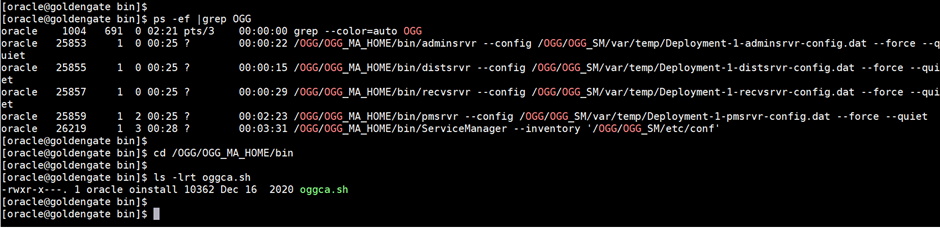
ps -ef |grep ServiceManager

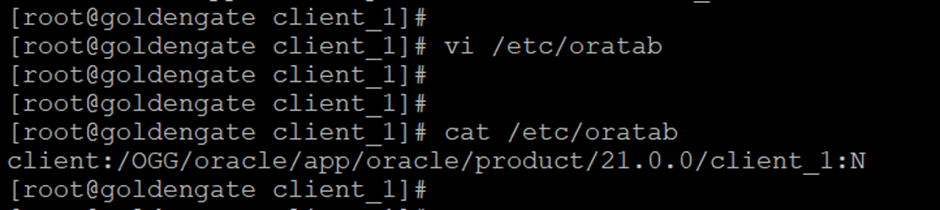
Add the entry on oratab file within Oracle client on OGG server
Check which port is using for OGG ServiceManager
[root@goldengate client_1]# netstat -lntp |grep Service

Finally, Check the service is accessible from browser as https://192.168.154.131:7820 in my case.
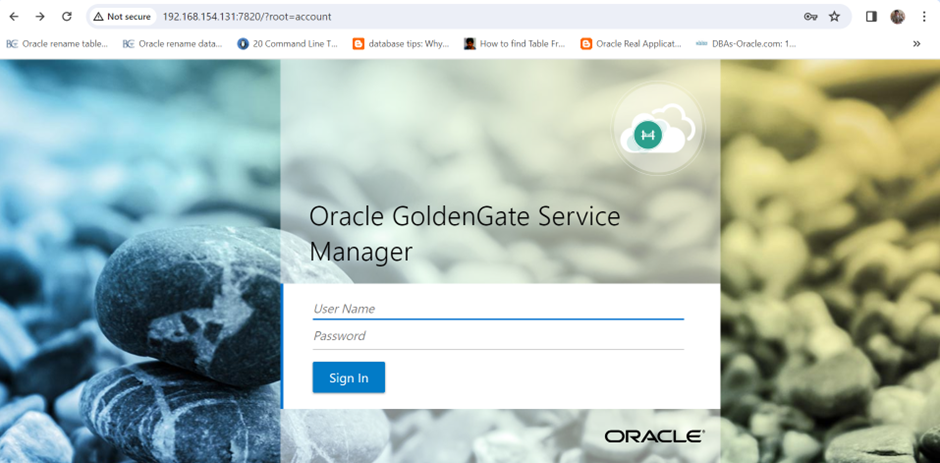
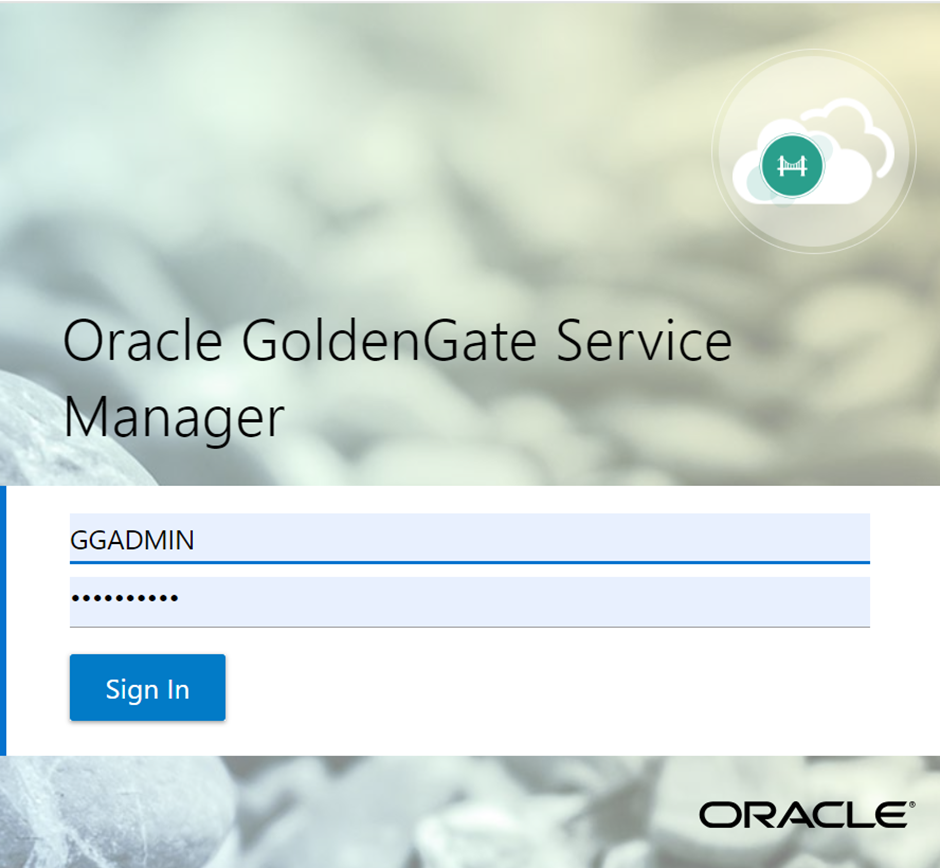
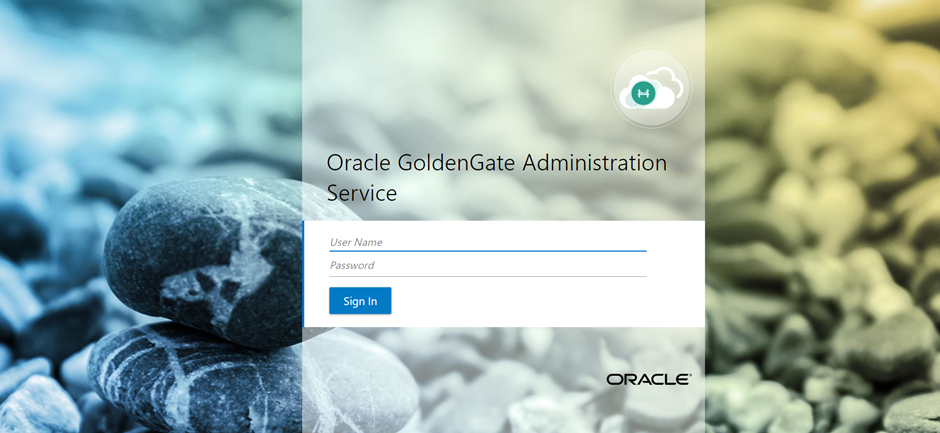
Please login on this page: -
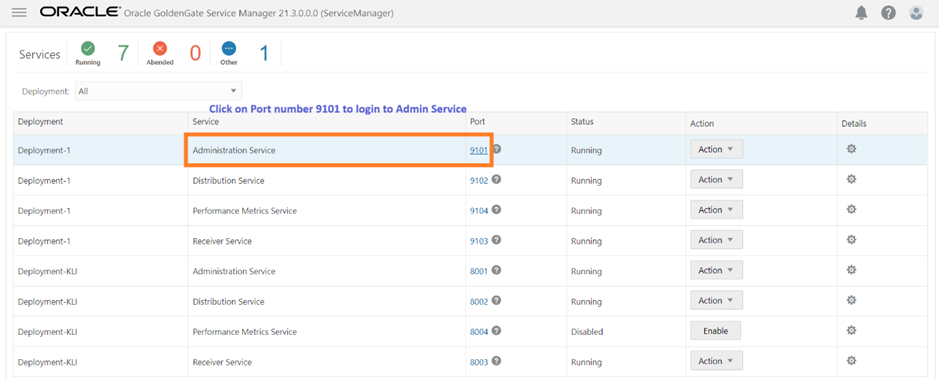
We can see main services shown in below snap
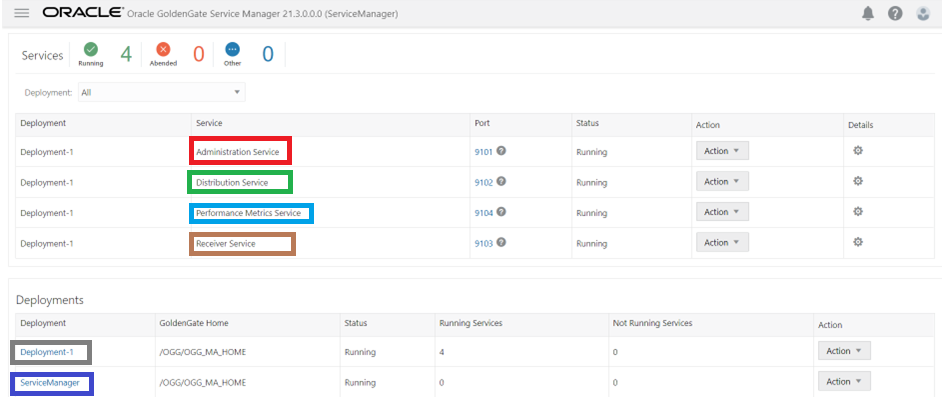
Note: --Microservices Architecture (MA) introduced in Oracle GoldenGate 12CR3 and five components that are part of this Architecture
Administration Service,DistributionService,ReceiverService,Performance Metrics ServerService Manager
Below are the processes related to OGG
To create Extarct/Replicat process, Login to the Admin Service (Click on Port number 8101 in my case)
Once you click on Administration service, login to below screen for Administration service
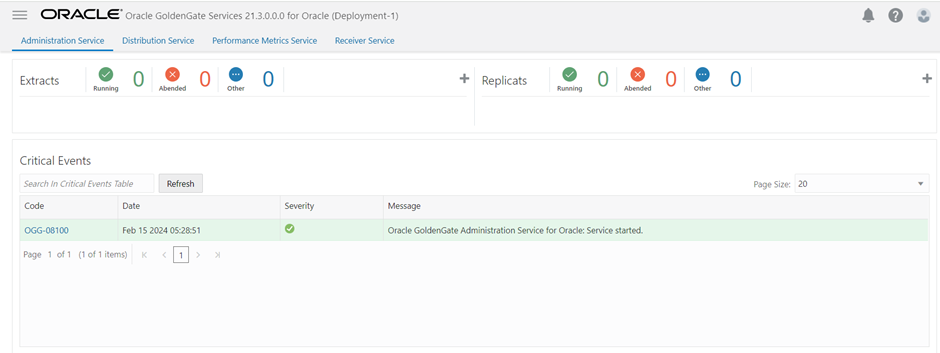
On this Service, we can create Extarct/Replicat process

Next--> Configure Source Database and Target database for data replication
Caution: It is provided for educational purposes only. It has been tested internally, however, we do not guarantee that it will work for you. Ensure that you run it in your test environment before using.
Thank you,
A. Rawat
Email: 88arawat@gmail.com