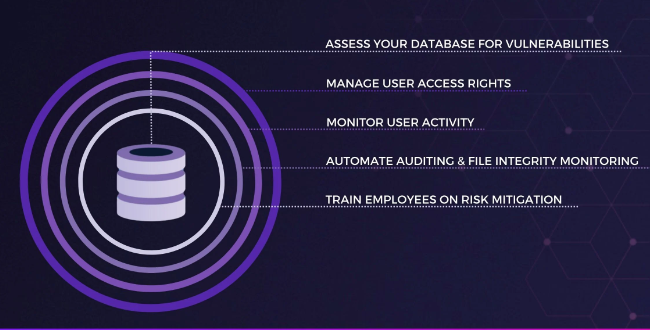
Organizations requires different level of restriction on their databases to secure the environments through blocking IP addresses/SQL Statements or Users to access the databases.
To achieve this requirement with Oracle AVDF, we need to create the Firewall policies.
Below are the example steps to create Blocking policy which will restrict the access unauthorized IP addresses to database.
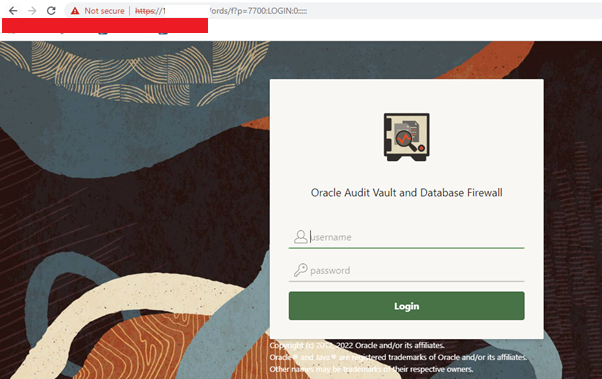
Step-1 Login to the AVDF GUI console with the AUDITOR user.
Example:- AVAUDIT user
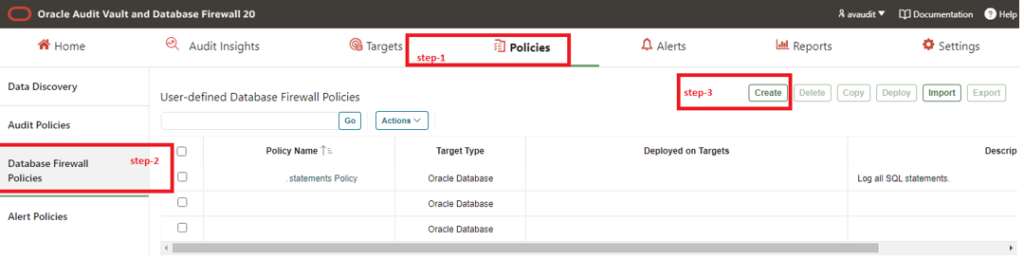
Step-2 Under the Policies tab, create policy as below snap shown in below.
Apologies:- Snaps are blur due to security reasons.
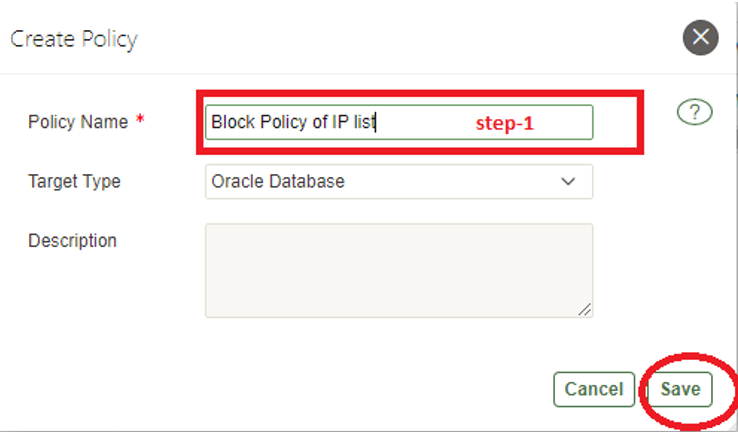
Step-3 Click on Create button and fill the details as below and save it.
Apologies:- Snaps are blur due to security reasons.
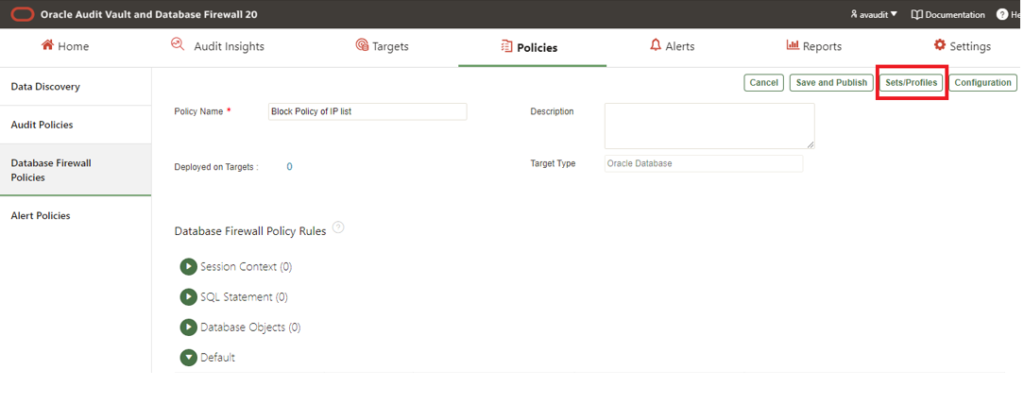
Step-4 We need to set the profile, Click on Sets/Profile button as below.
Apologies:- Snaps are blur due to security reasons.
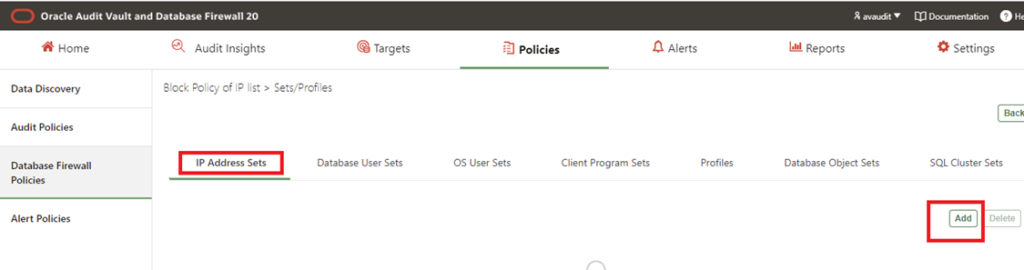
Step-5 There are four different Tabs, click on any tab as per your requirement.
For example: We are blocking Ip addresses, Click on add button.
Apologies:- Snaps are blur due to security reasons.
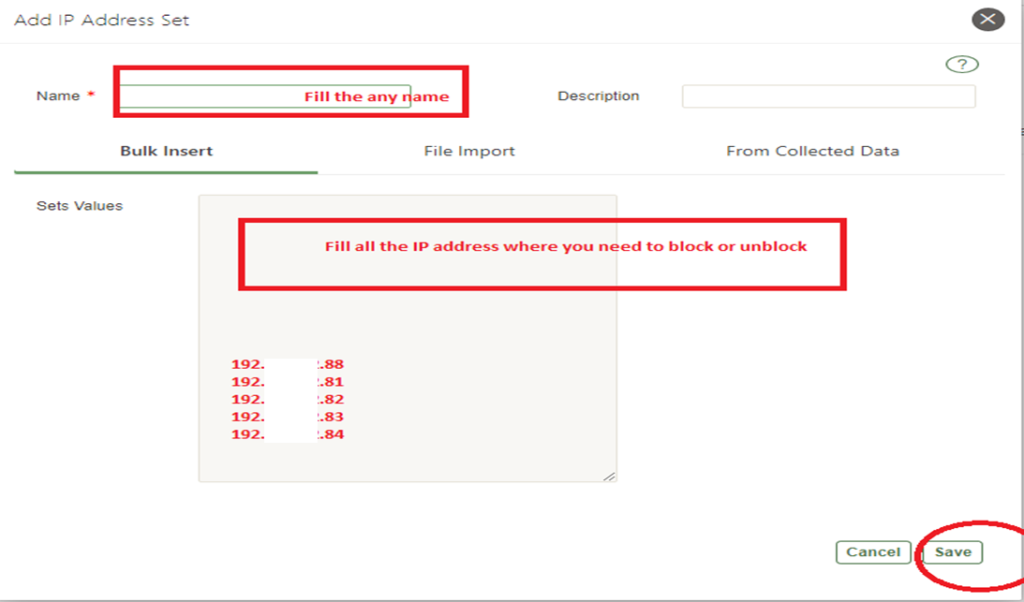
Step-6 Provide the list of IP addresses, Fill below details as per your requirements.
For example: We need to block the listed IPs so that need to add list of IPs only and Please --> Save it.
Note:- We have options to use File Import and From Collected Data to get the list of IP addresses.
Apologies:- Snaps are blur due to security reasons.
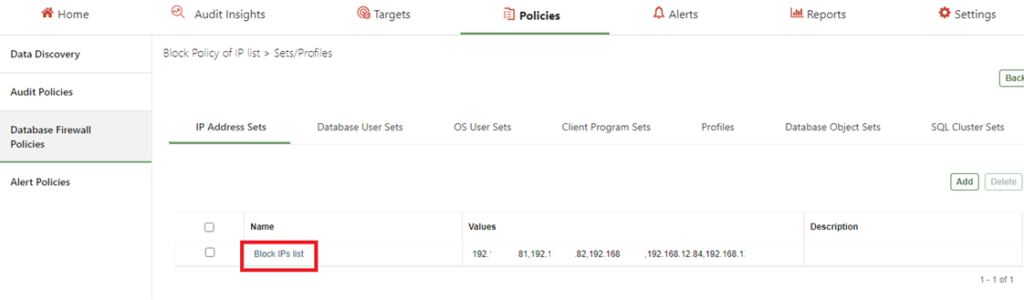
Step-7 Check the details which we have configured as below snap.
Apologies:- Snaps are blur due to security reasons.
Step-8 Click on OS User Sets and click on add button, Fill the details abs below and save.
Note:- Please provide the SYSTEM/Hostname names which IPs we have to block.
Apologies:- Snaps are blur due to security reasons.
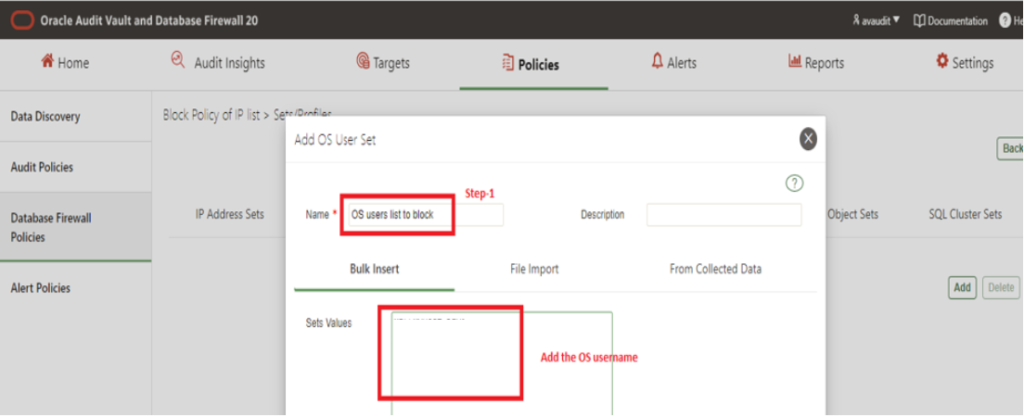
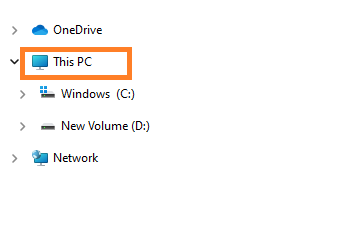
We can Check the SYSTEM/Hostname using below steps shown in below snap
Step-A Go to This PC on your system and Right click on this
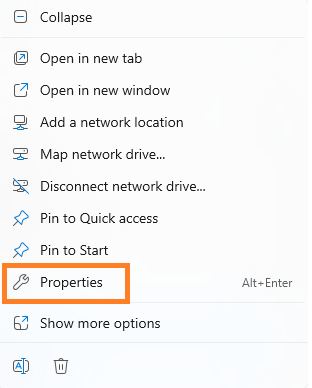
Step-B Click on Properties option as below
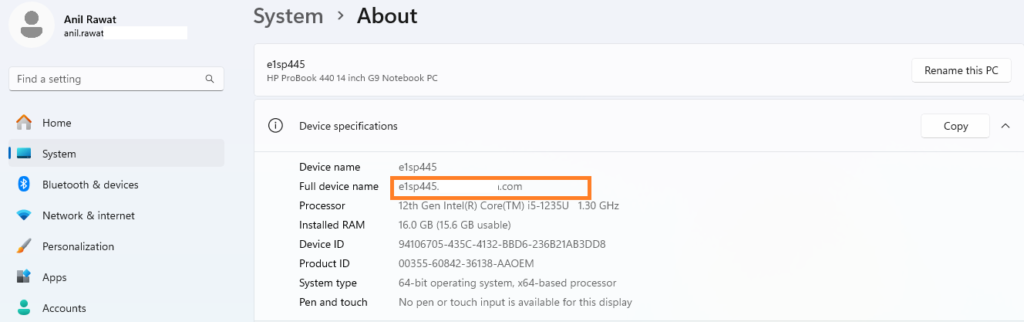
Step-C See below is the SYSTEM/Hostname of the system
Step-9 Now, Click on Back button (top right corner) à then click on Session Context Rule.
There are 4 types of Database Firewall Policy Rules
Session ContextSQL StatementDatabase ObjectsDefault
Click on Session Context and click add button to create a rule
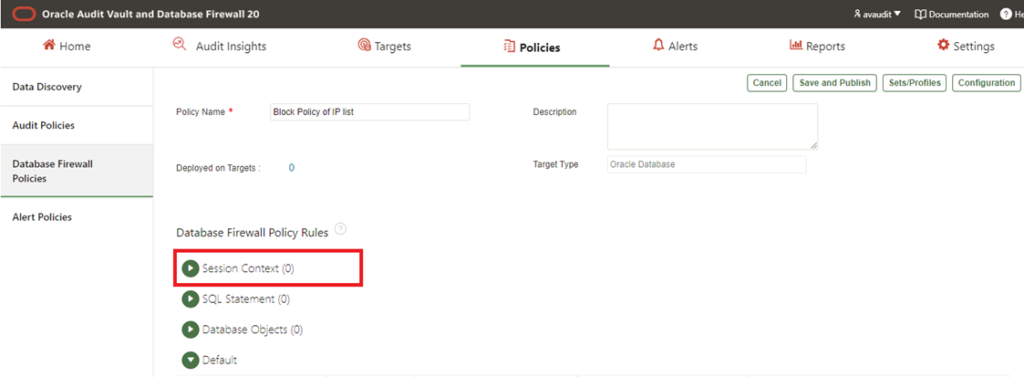
Step-10 Now for create a Rule, Click on Add button
Apologies:- Snaps are blur due to security reasons.
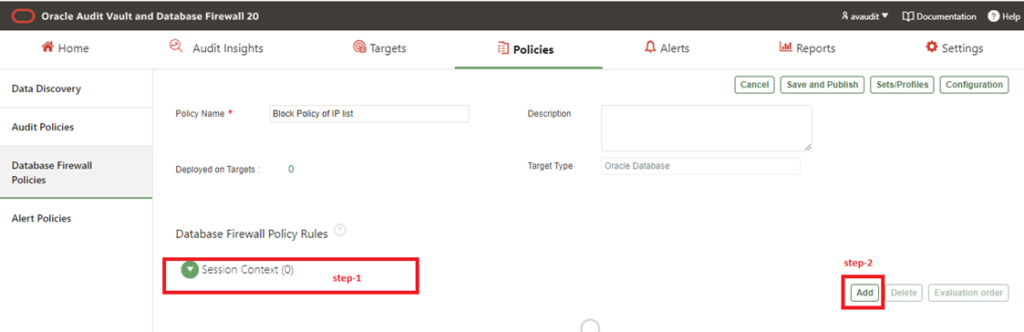
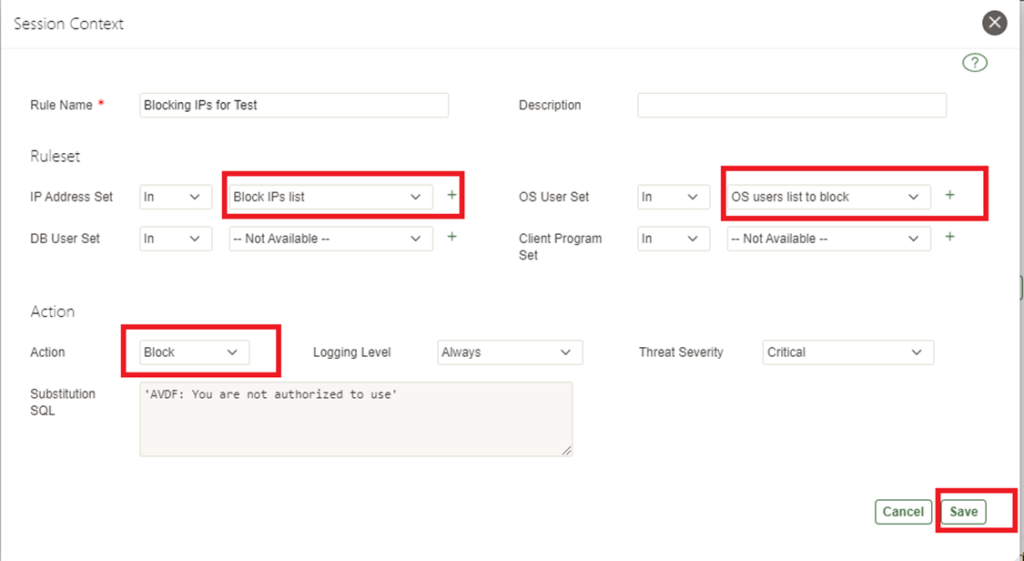
Note: - We can create the rules with below combination only-
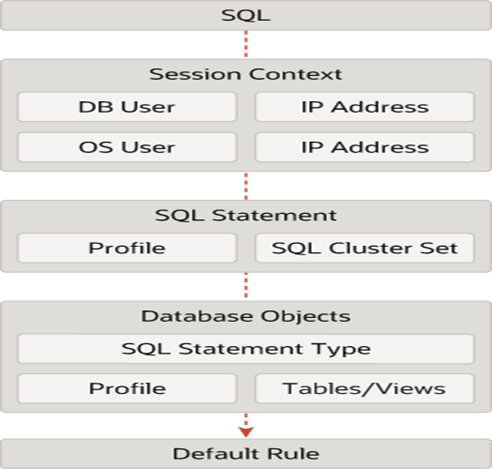
Step-11 Fill the details on below new page after clicking Add button
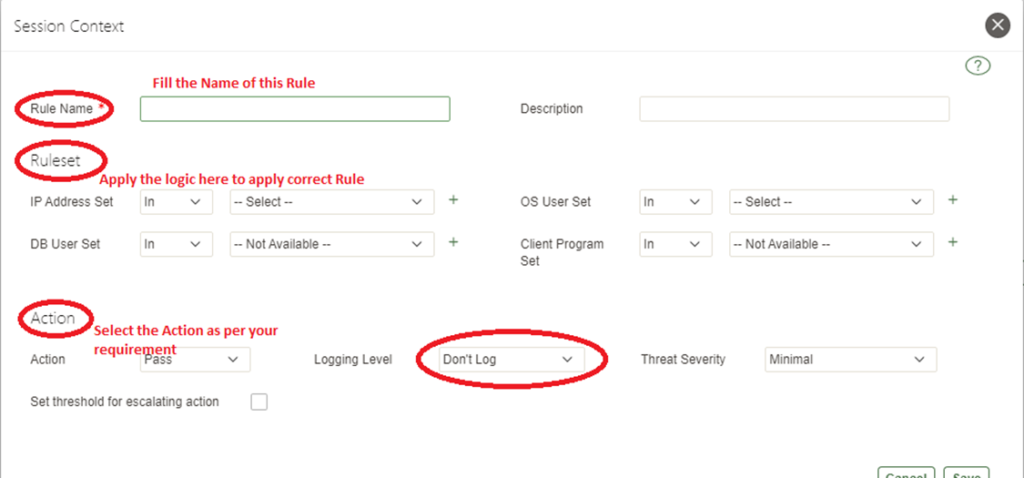
For Example:- Check the below snap for reference
Apologies:- Snaps are blur due to security reasons.
Step-12 Click on Save and Publish button as below snap
Apologies:- Snaps are blur due to security reasons.
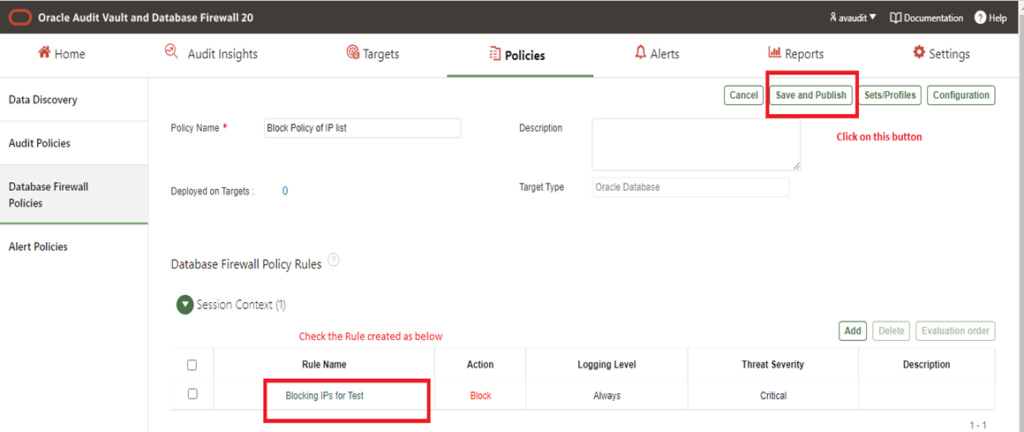
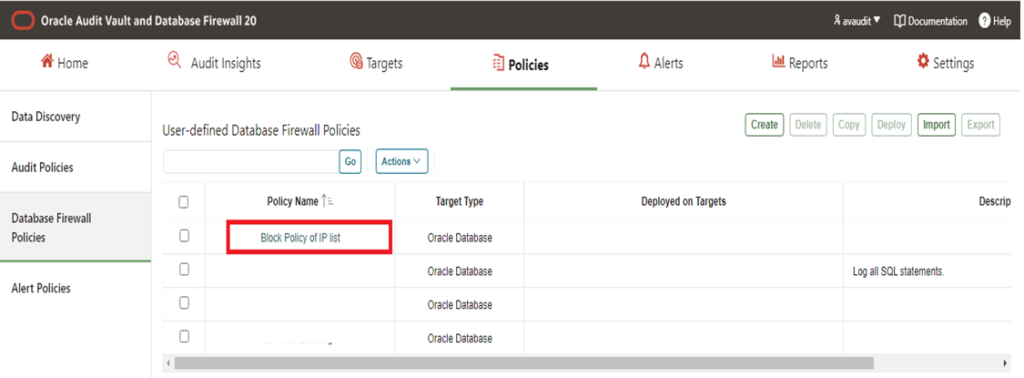
Step-13 See, we have created the policy under the User Defined Policies
Apologies:- Snaps are blur due to security reasons.
Step-14 How to deploy the policy for target databases?
Now select the policy and Deploy on the required Target Database as below steps
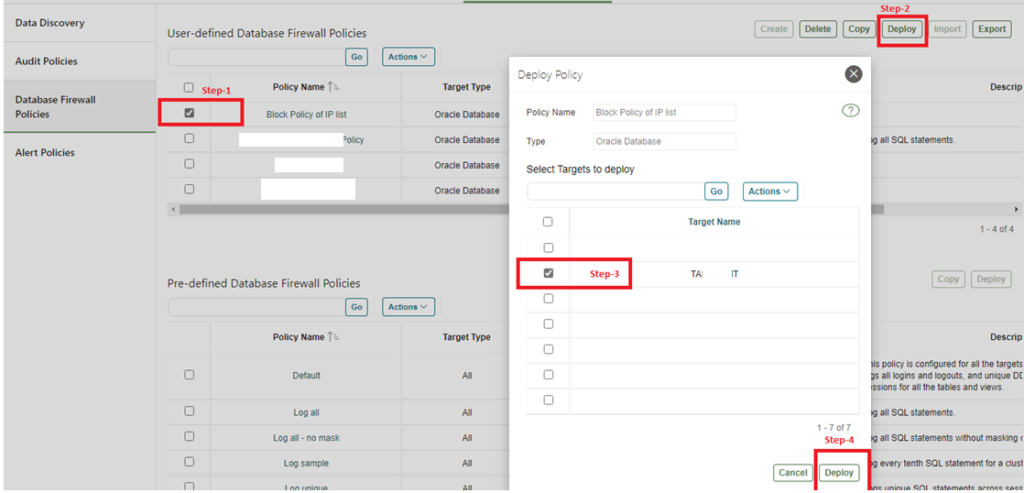
At last Step:- Now the policy has been deployed on required target database.
Check the status of the Policy applied/Deployed to the Target database
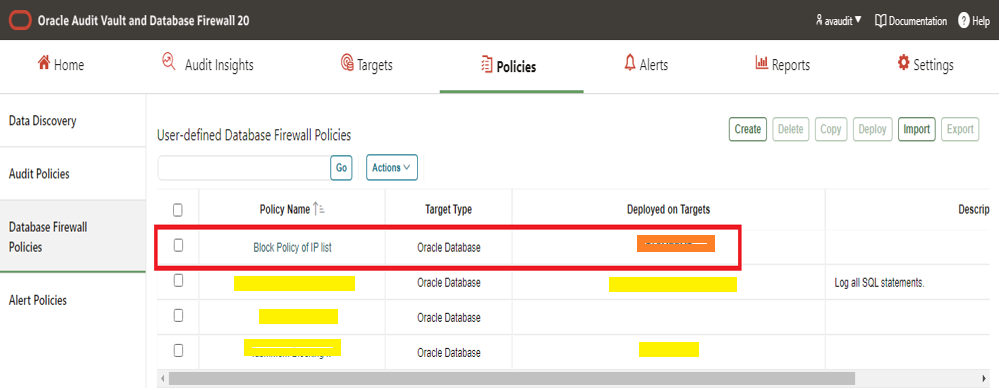
Note :-To check the Policy is working or not:- Please access the database from blocked IP address.

Configure the AVDF with below related articles: –
- What is Oracle AVDF?
- What are the main Components of Oracle AVDF?
- Why we need Oracle AVDF in our organization?
- What are the requirement to install Oracle AVDF?
- How to download software Oracle AVDF 20.7/20.8/20.9/20.10?
- How to install Oracle Audit Vault 20.7/20.8/20.9/20.10?
- How to setup the GUI console for Audit Vault Server?
- Mandatory Post-Install Configuration Tasks of AVDF
- How to install Oracle Database Firewall 20.6/20.7/20.8/20/9/20.10?
- How to Register the Database firewall on AVDF GUI console?
- Configure/Add the Target Databases on AVDF to monitor
- Configure the mail-id to get the Alert or Notification on mail
- Add Audit Data Collection/Capturing for target Database
- How to add Blocking/Proxy port for DB Firewall to use Blocking Mode?
- Create Firewall policy to block User’s IP to access the target Databases
Caution: It is provided for educational purposes only. It has been tested internally, however, we do not guarantee that it will work for you. Ensure that you run it in your test environment before using.
Thank you,
A. Rawat
Email: 88arawat@gmail.com