Hey, Are you facing challenges to install oracle database software/Binary using graphically due to GUI is not working? Don’t worry!
Lets install software in silent mode(without GUI).
Below are the steps to create database in silent mode(Without graphical interface)
Step-1 Download Oracle DB software from
OTN:- https://www.oracle.com/database/technologies/oracle19c-linux-downloads.html
OR
Oracle edelivery:– https://edelivery.oracle.com/osdc/faces/Home.jspx
Step-2 Transfer downloaded software to any of the location on Server
Step-3 Create a location on server for ORACLE_HOME directory
Example:- I have created the location as /MyPost/new_app/new_oracle/new_product/new_19.0.0/new_db_home

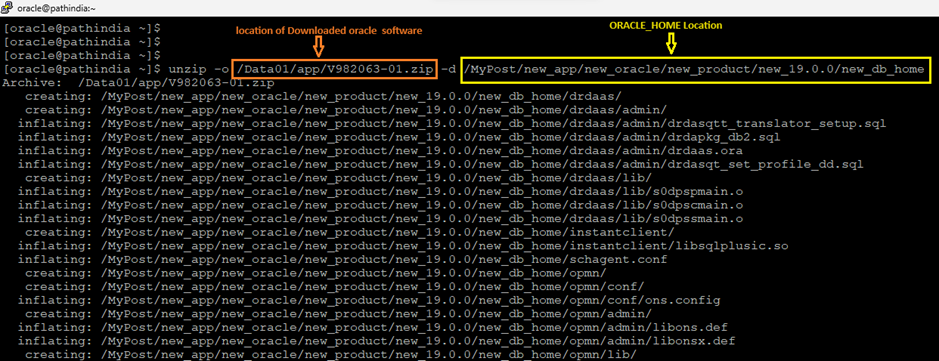
Step-4 Unzip the transferred Oracle DB software on this location
Command to unzip:- Go to ORACLE_HOME directory and execute unzip V982063-01.zip
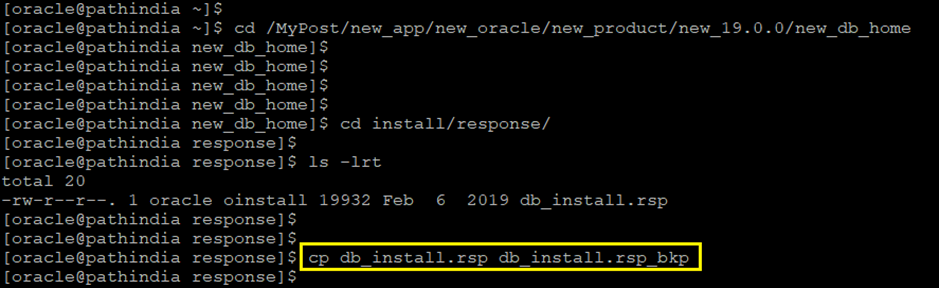
Step-5 Now, we will create a response file but note that keep the backup of this file for safer side.
Step-6 Now, we are adding some of the below values listed below
vi $ORACLE_HOME/install/response/db_install.rsp
oracle.install.option=INSTALL_DB_SWONLY
UNIX_GROUP_NAME=oinstall
INVENTORY_LOCATION=/Data01/app/oraInventory
ORACLE_HOME=/MyPost/new_app/new_oracle/new_product/new_19.0.0/new_db_home
ORACLE_BASE=/MyPost/new_app
oracle.install.db.InstallEdition=EE
oracle.install.db.OSDBA_GROUP=oinstall
oracle.install.db.OSOPER_GROUP=oinstall
oracle.install.db.OSBACKUPDBA_GROUP=oinstall
oracle.install.db.OSDGDBA_GROUP=oinstall
oracle.install.db.OSKMDBA_GROUP=oinstall
oracle.install.db.OSRACDBA_GROUP=oinstall
Step-7 Go to the ORACLE_HOME, Check the runInstaller

Step-8 Before installation we should Execute Pre-requisites
Note: – export CV_ASSUME_DISTID=OL7 — If software is installed on RHEL 8/OL8
command:- ./runInstaller -executePrereqs -silent -responseFile /home/oracle/database/response/db_install.rsp

Step-9 Finally everything is fine, Now we are Installing oracle software in Silent mode.
command:- ./runInstaller -silent -responseFile /MyPost/new_app/new_oracle/new_product/new_19.0.0/new_db_home/install/response/db_install.rsp
Note:- We can copy this response file any other location to use as silent installation.
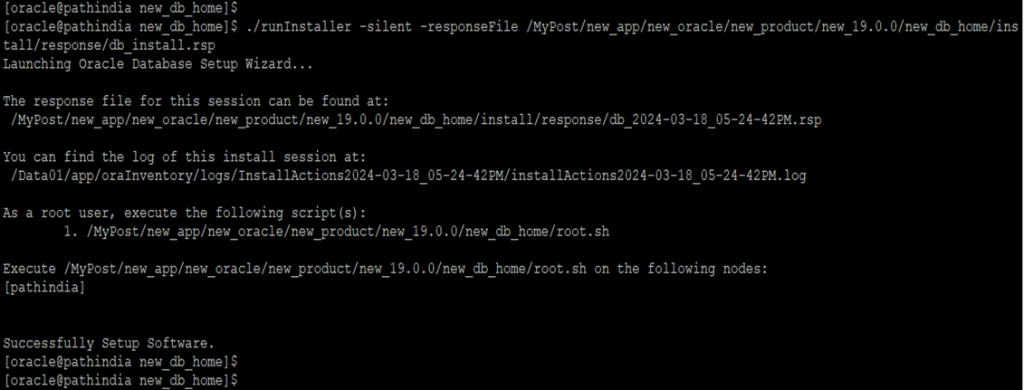
Step-9 Now, runInstaller ask to execute root.sh as shown in above snap
[root@pathindia ~]# /MyPost/new_app/new_oracle/new_product/new_19.0.0/new_db_home/root.sh
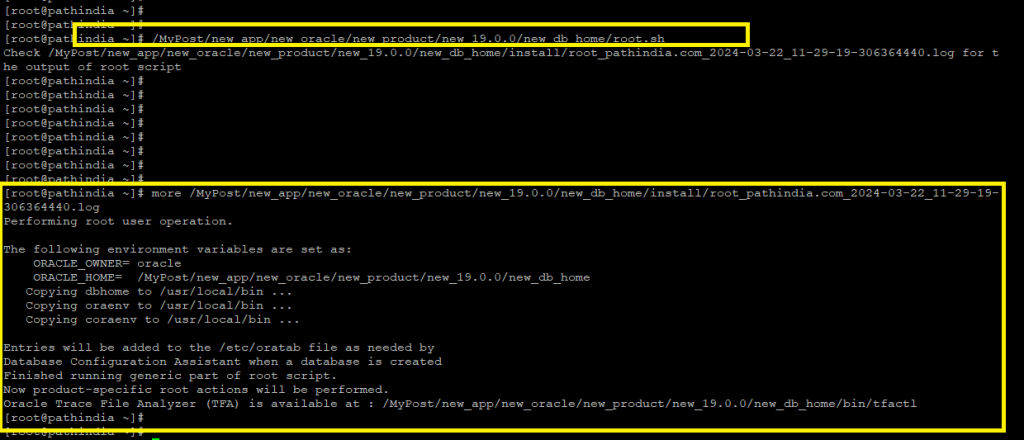
Oracle Binaries/Software installed successfully for Standalone. This is done……………Enjoy and stay connected……..
NEXT–> We can create Database using DBCA in silent mode.

Caution: It is provided for educational purposes only. It has been tested internally, however, we do not guarantee that it will work for you. Ensure that you run it in your test environment before using.
Thank you,
A. Rawat
Email: 88arawat@gmail.com