Once Source DB is configured to replicate the data using Oracle GoldenGate, Be ready with Target DB using this session.
Check my previous session to Configure Source DB for replicate the data using Oracle GoldenGate.

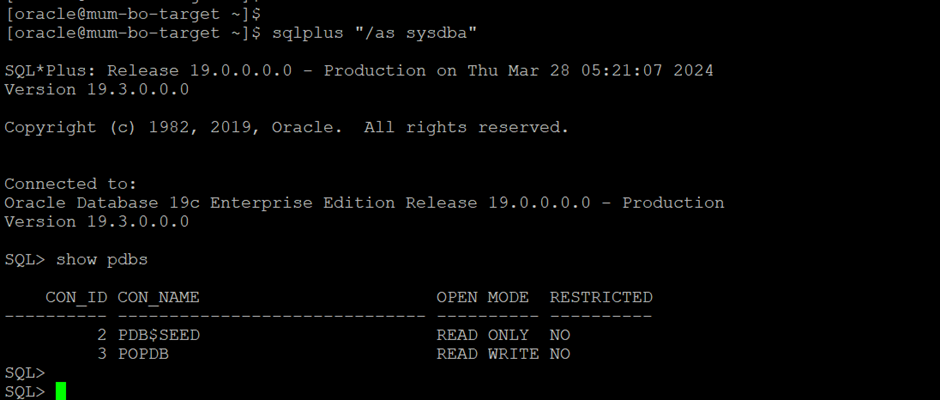
Step-1 Login to Target Database and check database process.

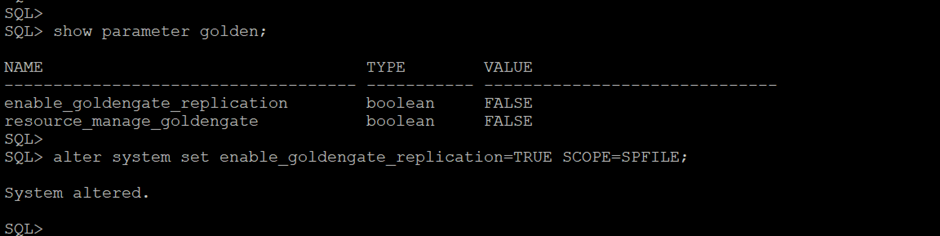
Step-2 To enable Oracle GoldenGate, set the following database initialization parameter.
ENABLE_GOLDENGATE_REPLICATION=true (on CDB level)
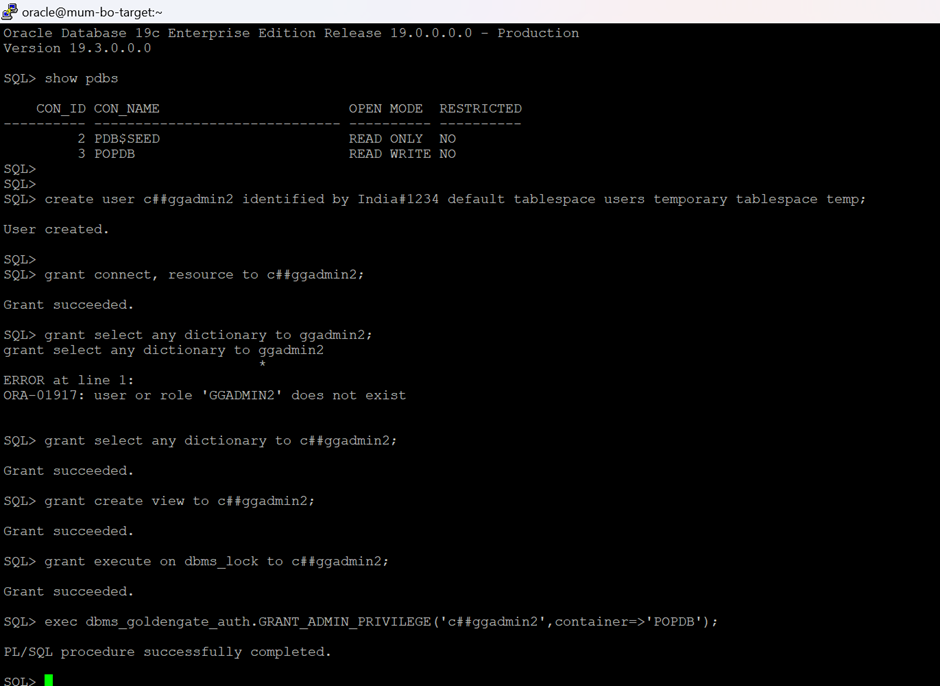
Step-3 Make sure you have setup the database for GoldenGate, if not then follow the below steps before creating the user on CDB level.
SQL> create user c##ggadmin2 identified by India#1234 default tablespace users temporary tablespace temp;
SQL> grant connect, resource to c##ggadmin2;
SQL> grant select any dictionary to c##ggadmin2;
SQL> grant create view to c##ggadmin2;
SQL> grant execute on dbms_lock to c##ggadmin2;
SQL> exec dbms_goldengate_auth. GRANT_ADMIN_PRIVILEGE('c##ggadmin2’, container=>'POPDB');
SQL> grant create session to c##ggadmin2 container=all;

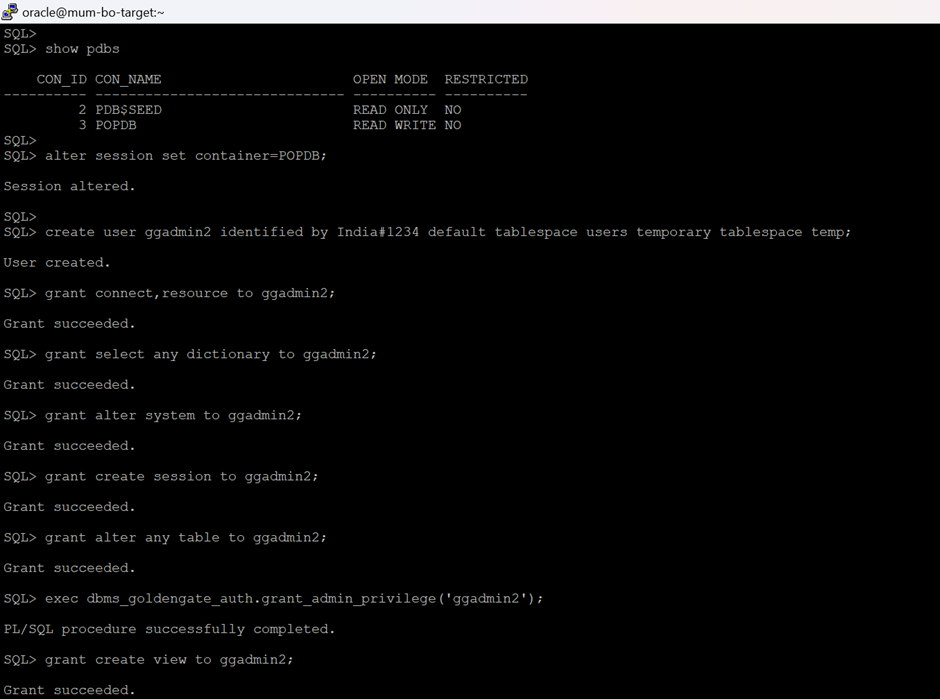
Step-4 On the Target database, separate GoldenGate user is needed for each pluggable database (PDB).
SQL> alter session set container=POPDB;
SQL> create user ggadmin2 identified by India#1234 default tablespace users temporary tablespace temp;
SQL> grant connect,resource to ggadmin2;
SQL> grant select any dictionary to ggadmin2;
SQL> grant alter system to ggadmin2;
SQL> grant create session to ggadmin2;
SQL> grant alter any table to ggadmin2;
SQL> exec dbms_goldengate_auth.grant_admin_privilege('ggadmin2');
SQL> grant create view to ggadmin2;

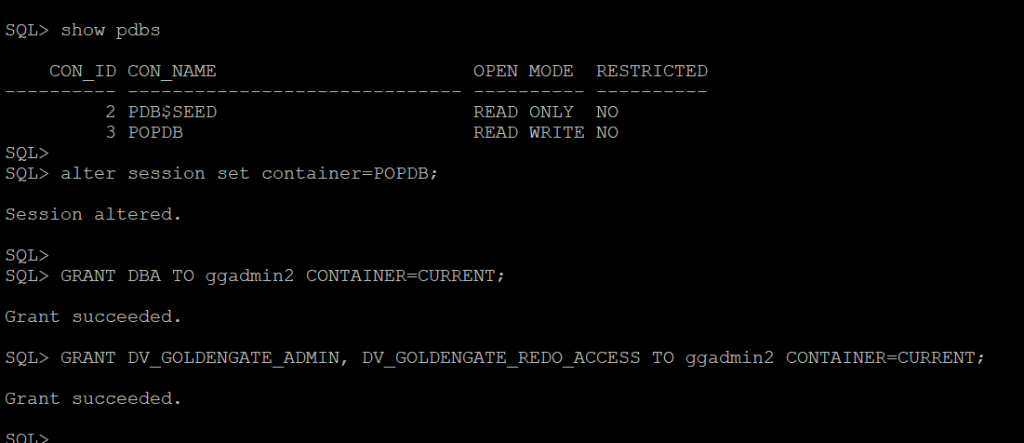
Step-5 Now create connection on OGG console for the Target database.
Note: - Check the firewalld service on source/target DB server.
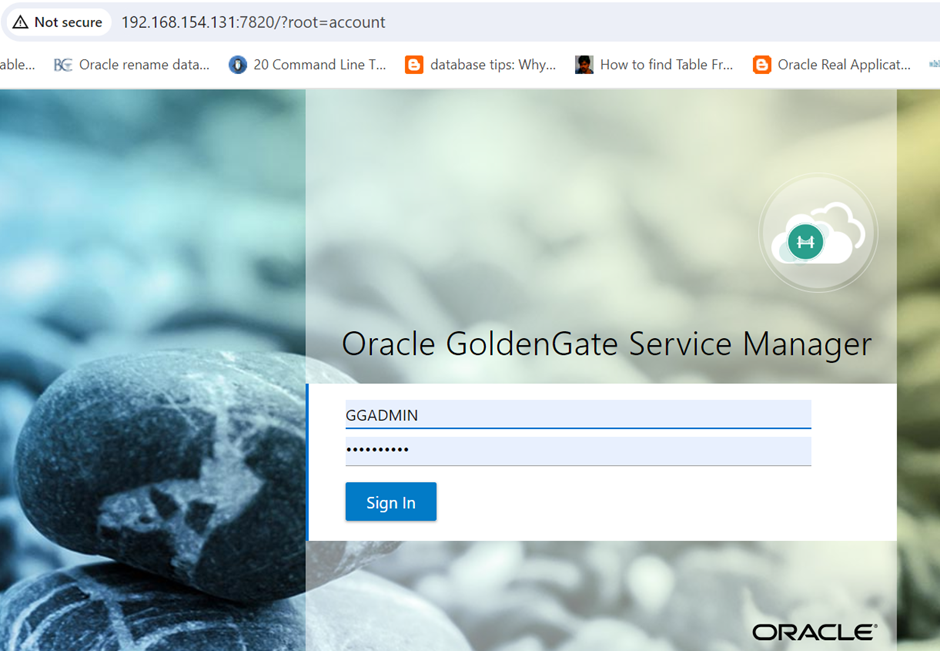
Access the URL http://192.168.154.131:7820 in my case and Login to the Service Manager
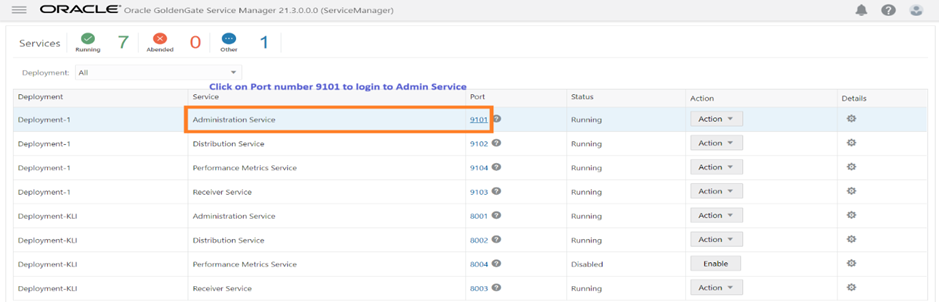
Click on port number 9101 for login to Administration service as shown in below snap.
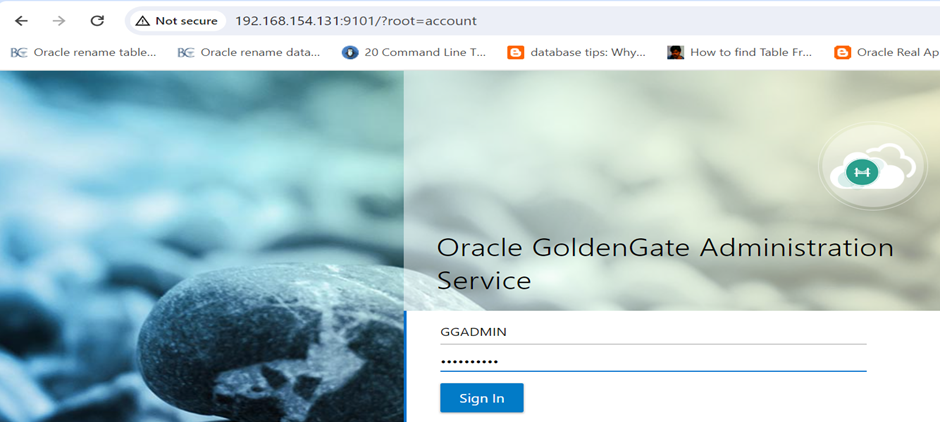
Now, Login to the Administration service page shown in below snap.
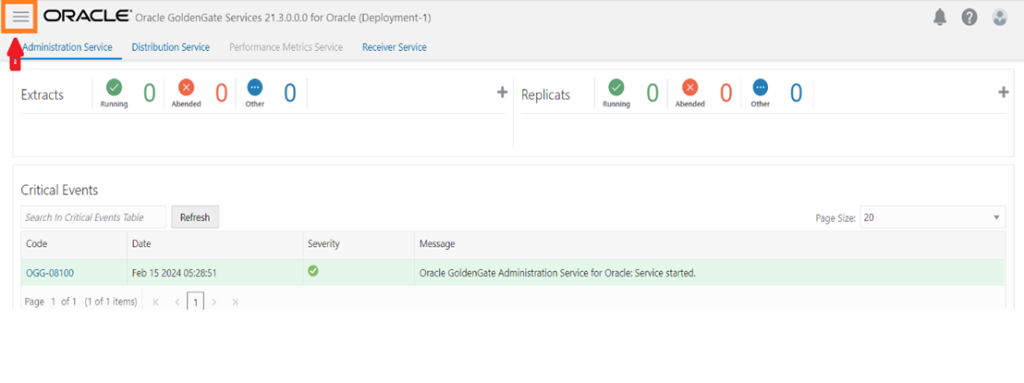
Click on Menu (marked in Red coloured)
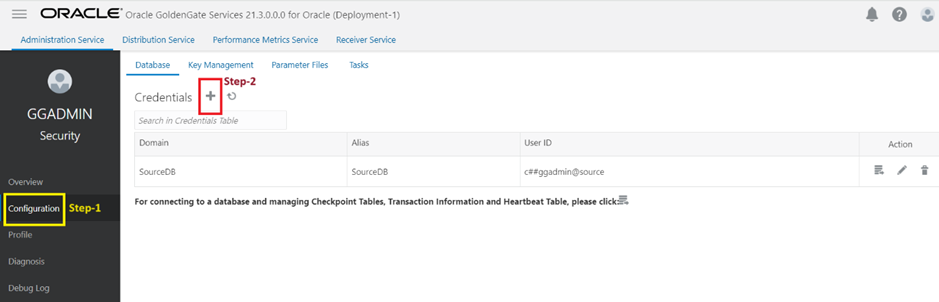
Please click on Configuration and then + sign shown in below snap
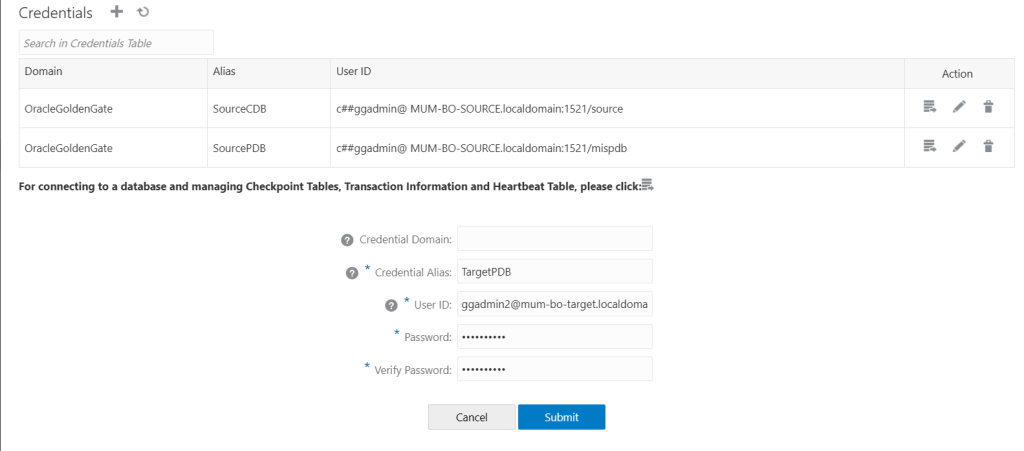
Step-6 Once click on + sign, please fill/add target PDB details to connect then click on submit button
syntax is ggadmin2@mum-bo-target.localdomain:1521/POPDB
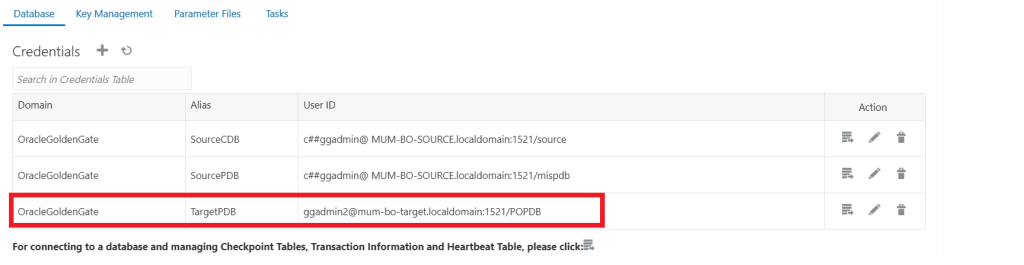
Once submitted, Credentials added successfully as shown in below snap.
Now, Check the connection is working fine to Target database. Please click on connection button (shown in red colour) under the Action
Note:- The icon turns blue when the connection is successful.
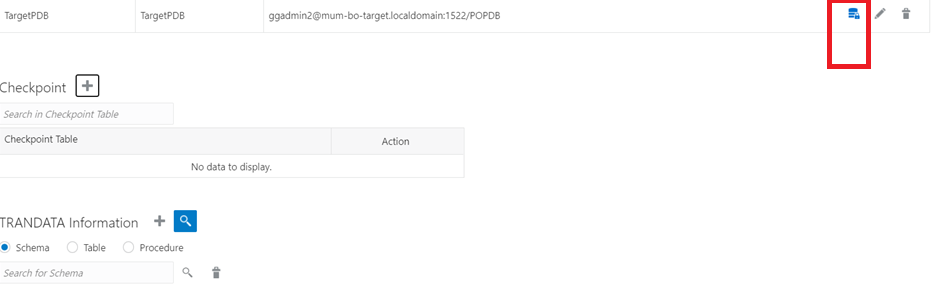
Step-7 Now, Please add the CheckPoint table for Target Database as below snaps
Note:- CheckPoint table name is ggadmin2.chkpt in my case.
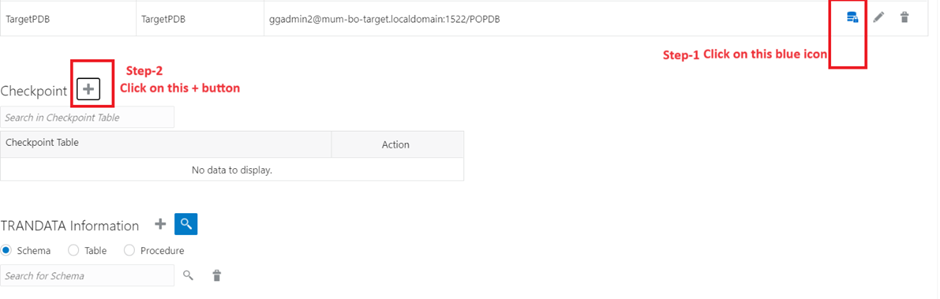
Once submitted, CheckPoint table created shown in below snap
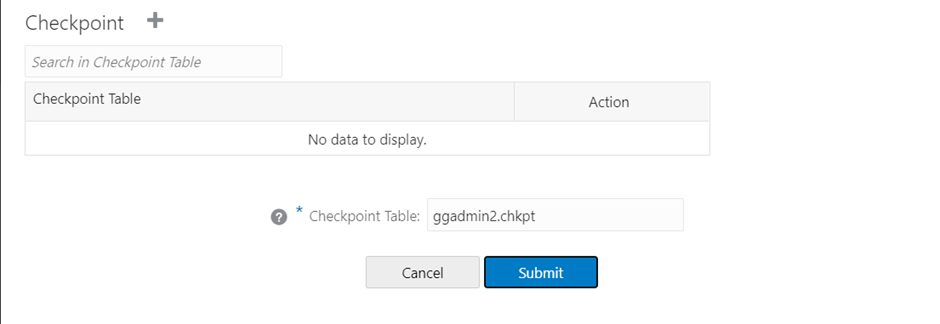
Now check below CheckPoint table added on Target PDB.
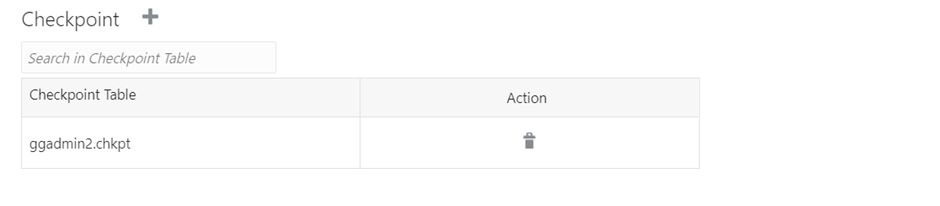
Now, Target Database configured on Oracle GoldenGate successfully..................Enjoy and stay connected.
Next –> Let’s create Extract/Replicat process to start the replication.
Caution: It is provided for educational purposes only. It has been tested internally, however, we do not guarantee that it will work for you. Ensure that you run it in your test environment before using.
Thank you,
A. Rawat
Email: 88arawat@gmail.com