Most of the time customer is asking to setup the AVDF alert on mail-ids, For getting AVDF alerts on mail-ids, Please follow the below steps.
Below are the high level steps to setup AVDF alert on mail-ids
Step-1 Setup SMTP for getting alert on mail
Step-2 Create Distribution List
Step-3 Setting up the Email Templates
Step-4 Create Policies as per requirement
Step-5 Enable the Auditing in Target Database
Step-6 Check the Alert now on console
Step-7 Check the Alert now on your mail-ids
Step-1 In the first step, We have to setup SMTP for getting alert on mail.
For this SMTP setup follow --> Step-4 Mandatory Post-Install Configuration Tasks of AVDF
Step-2 Login to the AVDF GUI console with the auditor user. Click here to check What types of users you have.
Example:- AUDITOR user
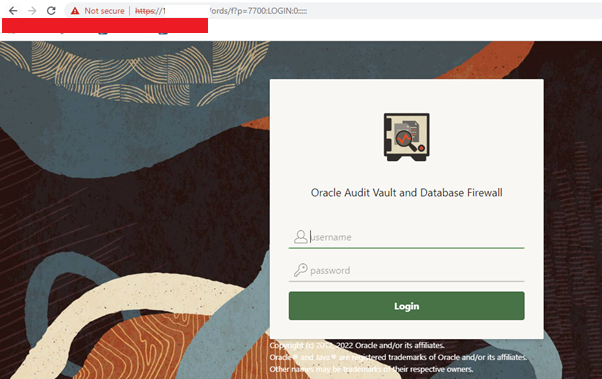
Step-3 After login to AVDF GUI console with AUDITOR, Create Distribution List
Click on Setting marked as blue color
Apologies:- Snaps are blur due to security reasons.

Click on Distribution List on right side of the page

Click on Create button marked with blue color as below snap

Provide the details as below snap for mail receiver

Check the details as below under the Distribution List
Apologies:- Snaps are blur due to security reasons.

Step-4 Setting up the Email Templates
Under the Setting --> Click Email Templets

Under Email Templates --> Click one of the Templets as below snap marked as black color
Example:- Alert Notification Templets
Apologies:- Snaps are blur due to security reasons.

Fill the details as below or Check the filled Details and SAVE this setting

For Example below setting in my AVDF
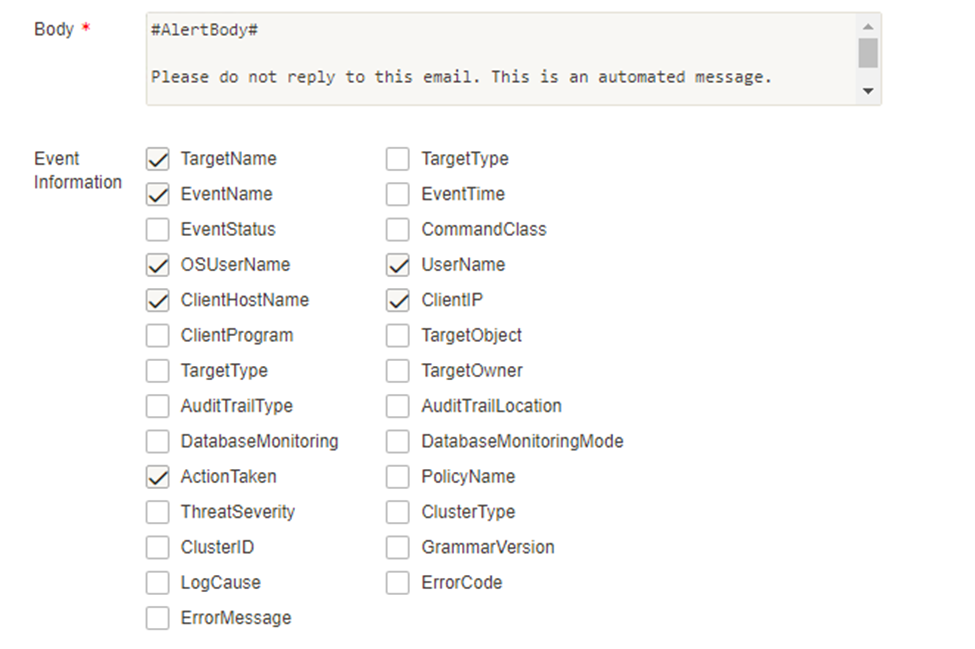
Step-5 Create Alert Policies as per requirement using below snaps as example
Go to the Policies --> then click on Alert Policies marked as red color
Apologies:- Snaps are blur due to security reasons.

Click on Click button marked as blue color as below snap

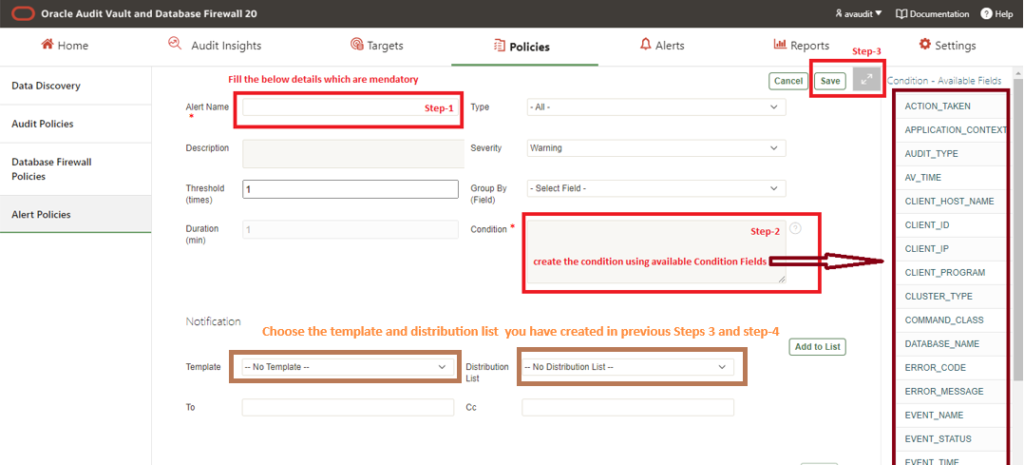
Below is the page where we need to provide the details

Create Alert for DRO,DELETE,TRUNCATE activities
For example, we are creating on Policy as below snap
- Provide the Alert name
- Create the Condition using available Condition Fields show in below snap
- Click on Save button
Apologies:- Snaps are blur due to security reasons.
Step-6 Enable the Auditing in Target Database
Step-7 Check the Alert now on AVDF console using AUDITOR user
Click on Alert as below snap marked as blue color

Click on Alert ID generated as below to check what data is capturing

Step-8 In this last step you can Check the Alert now on your mail-ids
Next-> Add Audit Data Collection/Capturing for target Database

Configure the AVDF with below related articles: –
- What is Oracle AVDF?
- What are the main Components of Oracle AVDF?
- Why we need Oracle AVDF in our organization?
- What are the requirement to install Oracle AVDF?
- How to download software Oracle AVDF 20.7/20.8/20.9/20.10?
- How to install Oracle Audit Vault 20.7/20.8/20.9/20.10?
- How to setup the GUI console for Audit Vault Server?
- Mandatory Post-Install Configuration Tasks of AVDF
- How to install Oracle Database Firewall 20.6/20.7/20.8/20/9/20.10?
- How to Register the Database firewall on AVDF GUI console?
- Configure/Add the Target Databases on AVDF to monitor
- Configure the mail-id to get the Alert or Notification on mail
- Add Audit Data Collection/Capturing for target Database
- How to add Blocking/Proxy port for DB Firewall to use Blocking Mode?
- Create Firewall policy to block User’s IP to access the target Databases
Caution: It is provided for educational purposes only. It has been tested internally, however, we do not guarantee that it will work for you. Ensure that you run it in your test environment before using.
Thank you,
A. Rawat
Email: 88arawat@gmail.com
Pingback:Install Oracle Database Firewall 20.6/20.7/20.8/20/9? – SYS oracle
Pingback:How to setup the GUI console for Audit Vault Server? – SYS oracle
Pingback:Configure/Add the Target Databases on AVDF to monitor – SYS oracle
Pingback:What is Oracle AVDF – SYS oracle
Pingback:Mandatory Post-Install Configuration Tasks of AVDF – SYS oracle
Pingback:How to add Blocking/Proxy port for DB Firewall – SYS oracle
Pingback:Why we need Oracle AVDF in our organization? – SYS oracle
Pingback:What are the requirement to install Oracle AVDF – SYS oracle
Pingback:How to download software Oracle AVDF 20.8 – SYS oracle
Pingback:How to install Oracle Audit Vault 20.6/20.7/20.8/20/9 – SYS oracle
Pingback:How to Register the Database firewall on AVDF GUI console? – SYS oracle
Pingback:Secure your Database with Oracle AVDF 20.6/20.7/20.8/20.9/20.10 – SYS oracle