
Note:- AVDF is a software appliance so it will auto setup all the services.
Example:-All the Firewall related services within Database Firewall Server.

1– Create bootable device using downloaded ISO image for Database Firewall
Below is the example of Database Firewall server ISO

Apologies:-Snaps are blur due to security reasons.
2- Using bootable device, boot or start the server for DB Firewall and follow below steps
Here is the first screen is showing the DB Firewall. Press ENTER button

3- Let the execute the installation of Firewall services

Apologies:-Snaps are blur due to security reasons.


4- On this stage, setup the password of root user for DBFW server

5- Provide the password to login to root user on this screen of Firewall services

6- On this screen, Provide the IP & Gateway for Audit Vault Server and press the ENTER
Apologies:-Snaps are blur due to security reasons.
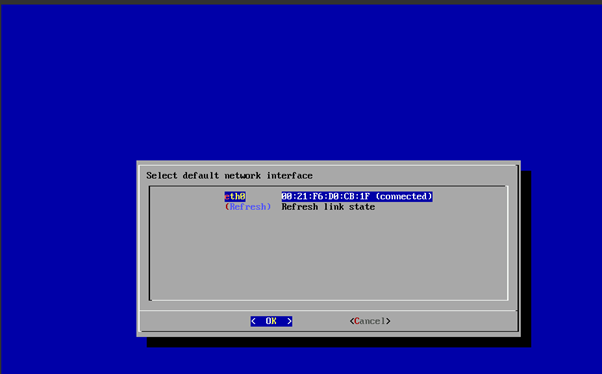
Apologies:-Snaps are blur due to security reasons.

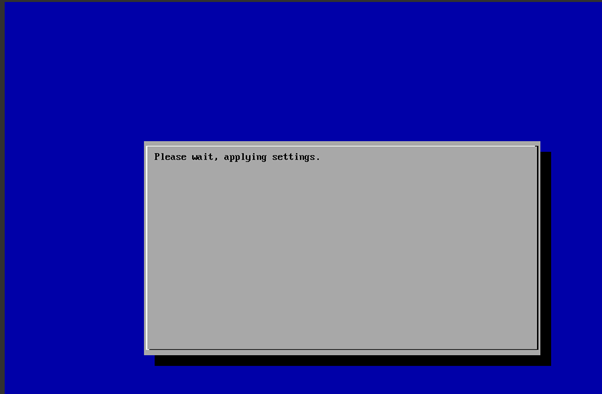

7. Installation is in process automatically as this is appliance.


8. This is the last step, where installation of DBWF Server completed

9– On this screen setup the password for support user.
Note:- You can not login to root user on both AV and DBFW server directly so that Support user is the OS user to login for both AV and DBFW server first, then you can switch.

Next -> How to Register the Database firewall on AVDF GUI console?

Configure the AVDF with below related articles: –
- What is Oracle AVDF?
- What are the main Components of Oracle AVDF?
- Why we need Oracle AVDF in our organization?
- What are the requirement to install Oracle AVDF?
- How to download software Oracle AVDF 20.x?
- How to install Oracle Audit Vault 20.x?
- How to setup the GUI console for Audit Vault Server?
- Mandatory Post-Install Configuration Tasks of AVDF
- How to install Oracle Database Firewall 20.x?
- How to Register the Database firewall on AVDF GUI console?
- Configure/Add the Target Databases on AVDF to monitor
- Configure the mail-id to get the Alert or Notification on mail
- Add Audit Data Collection/Capturing for target Database
- How to add Blocking/Proxy port for DB Firewall to use Blocking Mode?
- Create Firewall policy to block User’s IP to access the target Databases
Caution: It is provided for educational purposes only. It has been tested internally, however, we do not guarantee that it will work for you. Ensure that you run it in your test environment before using.
Thank you,
A. Rawat
Email: 88arawat@gmail.com
Pingback:How to setup the GUI console for Audit Vault Server? – SYS oracle
Pingback:How to Register the Database firewall on AVDF GUI console? – SYS oracle
Pingback:Configure/Add the Target Databases on AVDF to monitor – SYS oracle
Pingback:How to download software Oracle AVDF 20.8 – SYS oracle
Pingback:Configure the mail-id to get the Alert or Notification on mail – SYS oracle
Pingback:Mandatory Post-Install Configuration Tasks of AVDF – SYS oracle
Pingback:What is Oracle AVDF – SYS oracle
Pingback:What are the requirement to install Oracle AVDF – SYS oracle
Pingback:Why we need Oracle AVDF in our organization? – SYS oracle
Pingback:Secure your Database with Oracle AVDF 20.6/20.7/20.8/20.9/20.10 – SYS oracle
Pingback:How to add Blocking/Proxy port for DB Firewall – SYS oracle
Pingback:What are the main Components of Oracle AVDF ? – SYS oracle
Pingback:How to install Oracle Audit Vault 20.6/20.7/20.8/20/9 – SYS oracle