There are two Oracle AVDF admin roles with different target access levels:
Super Administrator – This role can create other administrators or super administrators, has access to all targets to modify/add/manage, and grants access to specific targets and groups to an administrator.
Super Auditor – Auditor can only see Data/Reports or can create/manage the polices for all the targets.
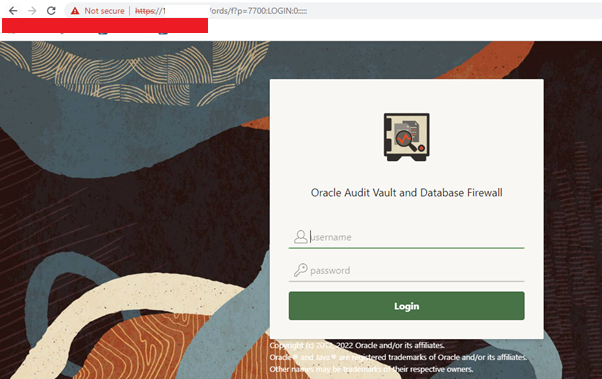
Step-1 Login to the AVDF GUI console with the admin user.
Example:- AVADMIN user
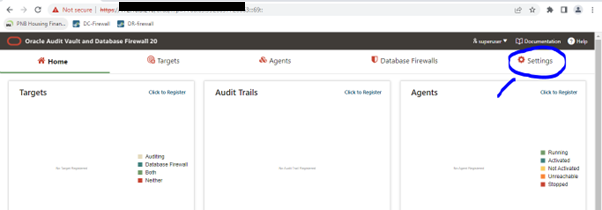
Step-2 Setup or Review the DNS and NTP system service configuration.
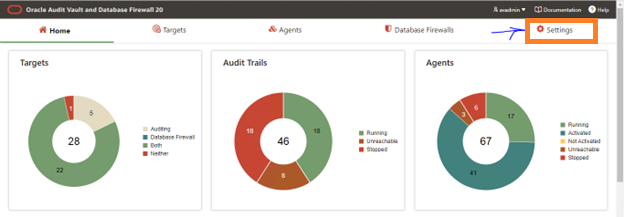
Click on Setting marked as circle
Apologies:- Snaps are blur due to security reasons.
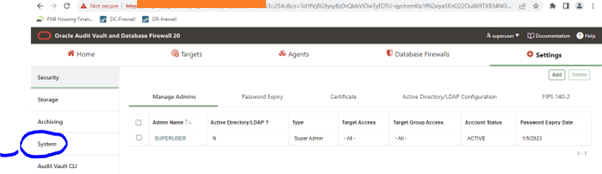
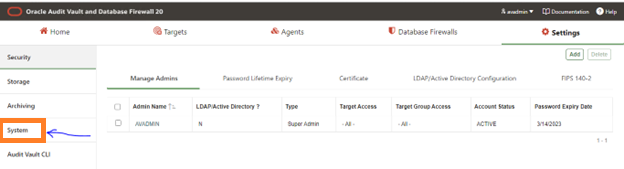
Click on System marked as circle
Apologies:- Snaps are blur due to security reasons.
Click on System setting and fill the DNS Server IP (Max three DNS IP we can provide)
Apologies:- Snaps are blur due to security reasons.
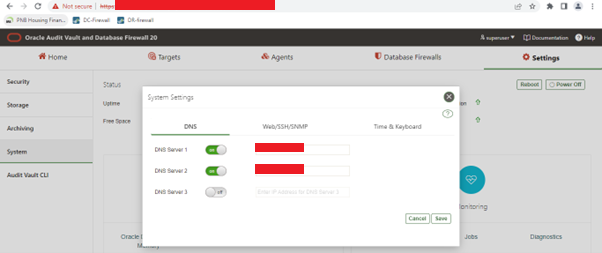
Click Settings tab -> Click on the System tab in the left navigation menu -> In the Configuration tab click on System Setting
Click on the WEB/SSH/SNMP as below snap and enable these services
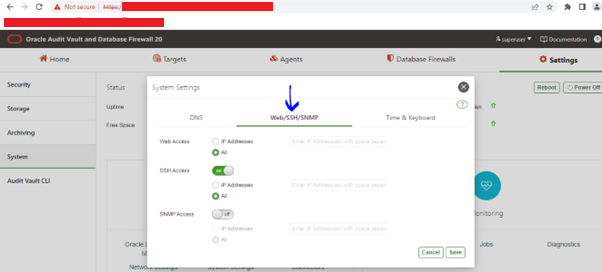
Web Access: If you want to allow only selected computers to access the Audit Vault Server console, select IP Addresses and enter specific IP addresses in the box, separated by spaces. Using the default value All allows access from any computer in your site.
SSH Access: You can specify a list of IP addresses that are allowed to access the Audit Vault Server through SSH, from a remote console by selecting IP Addresses and entering them in this field, separated by spaces. Using the value All allows access from any computer in your site. Using the value Disabled prevents SSH access from any computer.
SNMP Access: You can specify a list of IP addresses that are allowed to access the network configuration of Audit Vault Server through SNMP by selecting IP Addresses. Then enter them in this field, separated by spaces. Selecting All allows access from any computer. If you disable this, it prevents SNMP access.
Step-3 Setup or Review NTP system service configuration.
Click Settings tab --> Click on the System tab in the left navigation menu -->
In the Configuration tab click on System Setting
Provide the details of NTP server (Max three NTP IP we can provide) and Save it
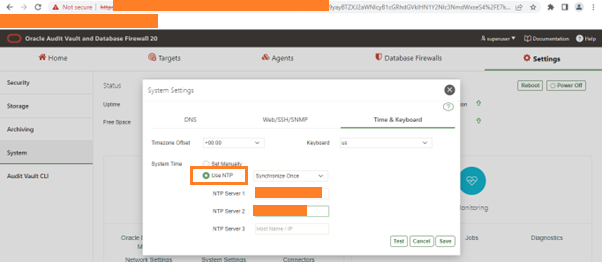
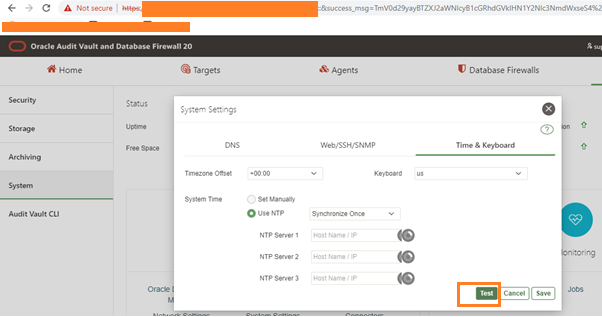
Now TEST the NTP servers using TEST button as below and Save this
Apologies:- Snaps are blur due to security reasons.
Step-4 Setup or Review the SMTP Mail for Alert system service configuration.
Click on Setting marked as red color
Apologies:- Snaps are blur due to security reasons.
Click on System on the right side, marked as red color
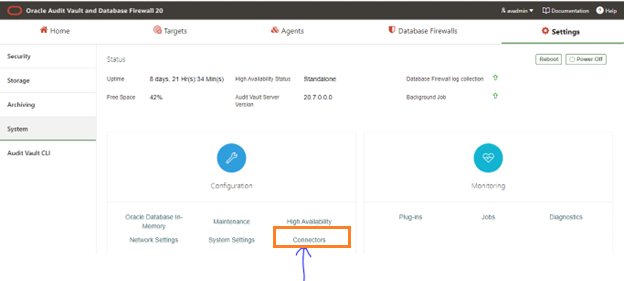
Click on connector, marked as red color
Apologies:- Snaps are blur due to security reasons.
Fill the SMTP details on this steps.
Note:-From Address is the mail id which will be the sender.
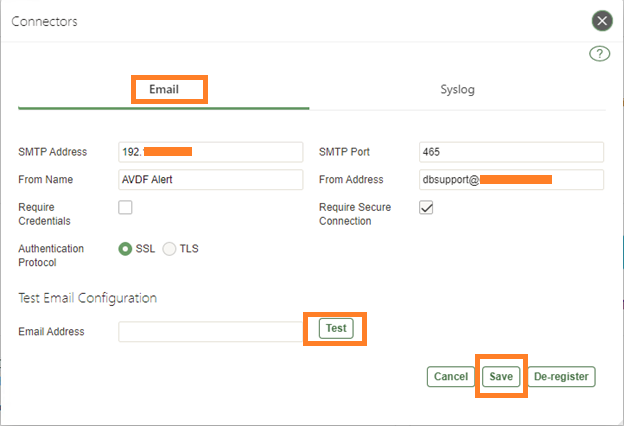
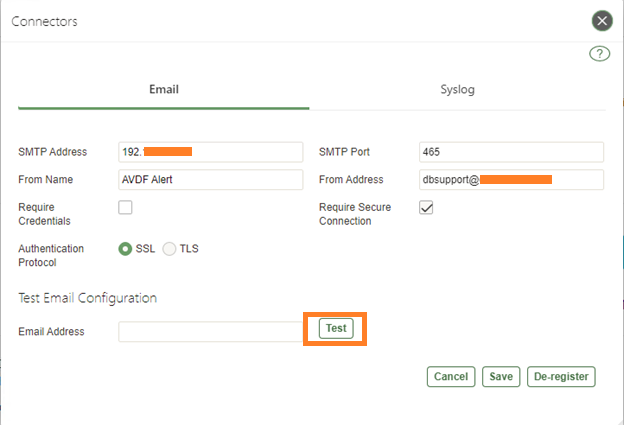
Under Test Email Configuration --> provide the receiver email address and click on Test button to check mail is receiving or not.
Once Testing done, Please save the changes using Save button on this step.
Next -> How to install Oracle Database Firewall 20.6/20.7/20.8/20/9?

Configure the AVDF with below related articles: –
- What is Oracle AVDF?
- What are the main Components of Oracle AVDF?
- Why we need Oracle AVDF in our organization?
- What are the requirement to install Oracle AVDF?
- How to download software Oracle AVDF 20.7/20.8/20.9/20.10?
- How to install Oracle Audit Vault 20.7/20.8/20.9/20.10?
- How to setup the GUI console for Audit Vault Server?
- Mandatory Post-Install Configuration Tasks of AVDF
- How to install Oracle Database Firewall 20.6/20.7/20.8/20/9/20.10?
- How to Register the Database firewall on AVDF GUI console?
- Configure/Add the Target Databases on AVDF to monitor
- Configure the mail-id to get the Alert or Notification on mail
- Add Audit Data Collection/Capturing for target Database
- How to add Blocking/Proxy port for DB Firewall to use Blocking Mode?
- Create Firewall policy to block User’s IP to access the target Databases
Caution: It is provided for educational purposes only. It has been tested internally, however, we do not guarantee that it will work for you. Ensure that you run it in your test environment before using.
Thank you,
A. Rawat
Email: 88arawat@gmail.com
Pingback:How to setup the GUI console for Audit Vault Server? – SYS oracle
Pingback:What is Oracle AVDF – SYS oracle
Pingback:Configure the mail-id to get the Alert or Notification on mail – SYS oracle
Pingback:How to Register the Database firewall on AVDF GUI console? – SYS oracle
Pingback:What are the requirement to install Oracle AVDF – SYS oracle
Pingback:How to download software Oracle AVDF 20.8 – SYS oracle
Pingback:Add Audit Data Collection/Capturing for target Database – SYS oracle
Pingback:How to add Blocking/Proxy port for DB Firewall – SYS oracle
Pingback:Why we need Oracle AVDF in our organization? – SYS oracle
Pingback:Secure your Database with Oracle AVDF 20.6/20.7/20.8/20.9/20.10 – SYS oracle
A blog like yours should be earning much money from adsense..-.,?
Glad to be one of the visitors on this awe inspiring web site : D.
Pingback:What are the main Components of Oracle AVDF ? – SYS oracle
Pingback:How to install Oracle Audit Vault 20.6/20.7/20.8/20/9 – SYS oracle
Pingback:Install Oracle Database Firewall 20.6/20.7/20.8/20/9? – SYS oracle
Pingback:Configure/Add the Target Databases on AVDF to monitor – SYS oracle
Glad to be one of the visitors on this awe inspiring web site : D.
Hi there, I found your website via Google while searching for a related topic, your website came up, it looks great. I have bookmarked it in my google bookmarks.